Overview
Prerequisites
Before configuring, make sure you have:Get EvoLink API Key
- Log in to EvoLink Dashboard
- Find API Keys in the dashboard, click “Create New Key” button, then copy the generated Key
- API Key usually starts with
sk-
Step 1: Install Claude Code CLI
Tip: If you don’t know how to open a command line terminal, see FAQ - How to open command line terminal
1. One-Command Installation
- macOS / Linux
- Windows
permission denied means you need to add sudo before the command.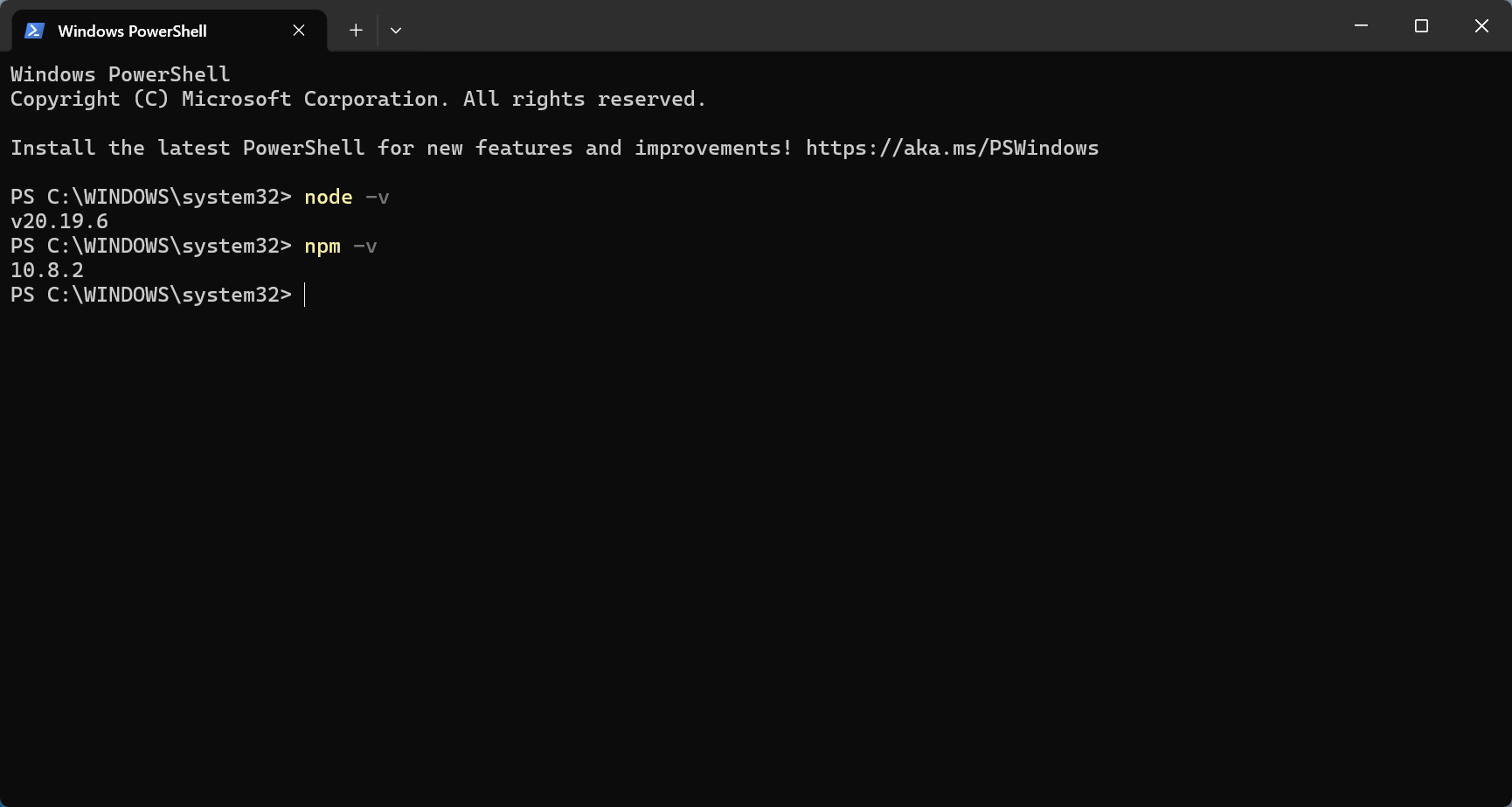
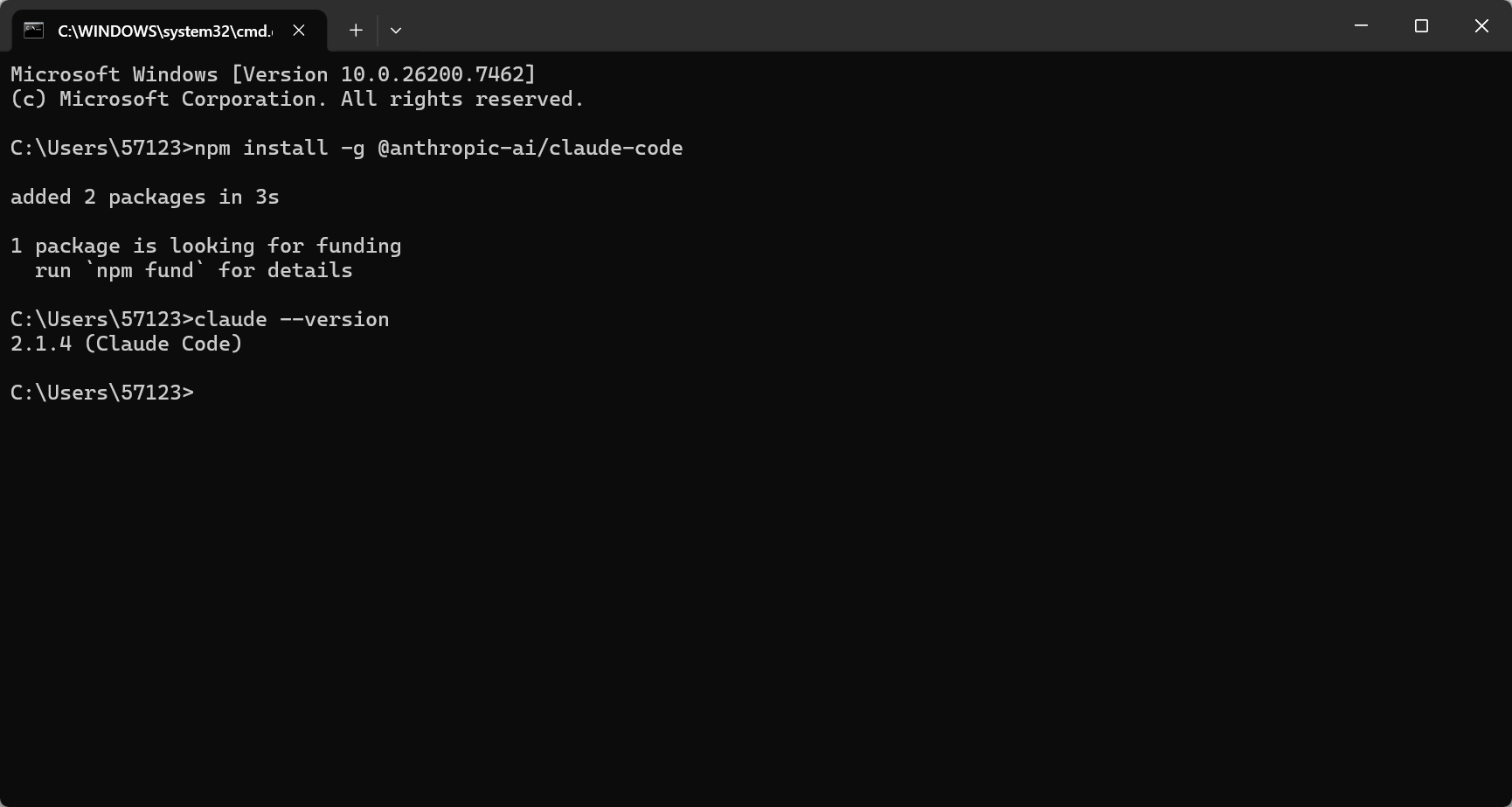
2. Verify Installation
1.x.x).
Step 2: Configure EvoLink API
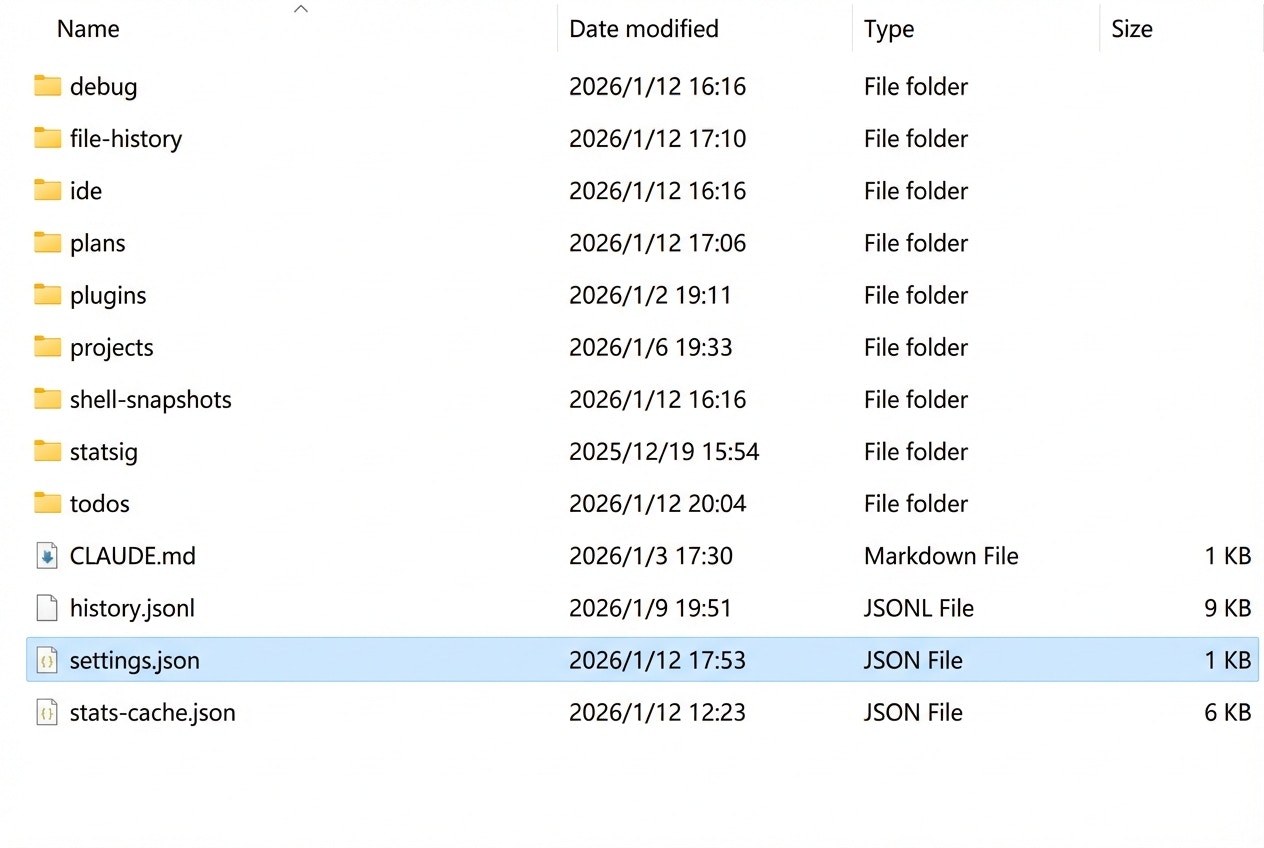
Claude Code CLI is configured viasettings.json.
- CC Switch
- settings.json
- Permanent
- Temporary
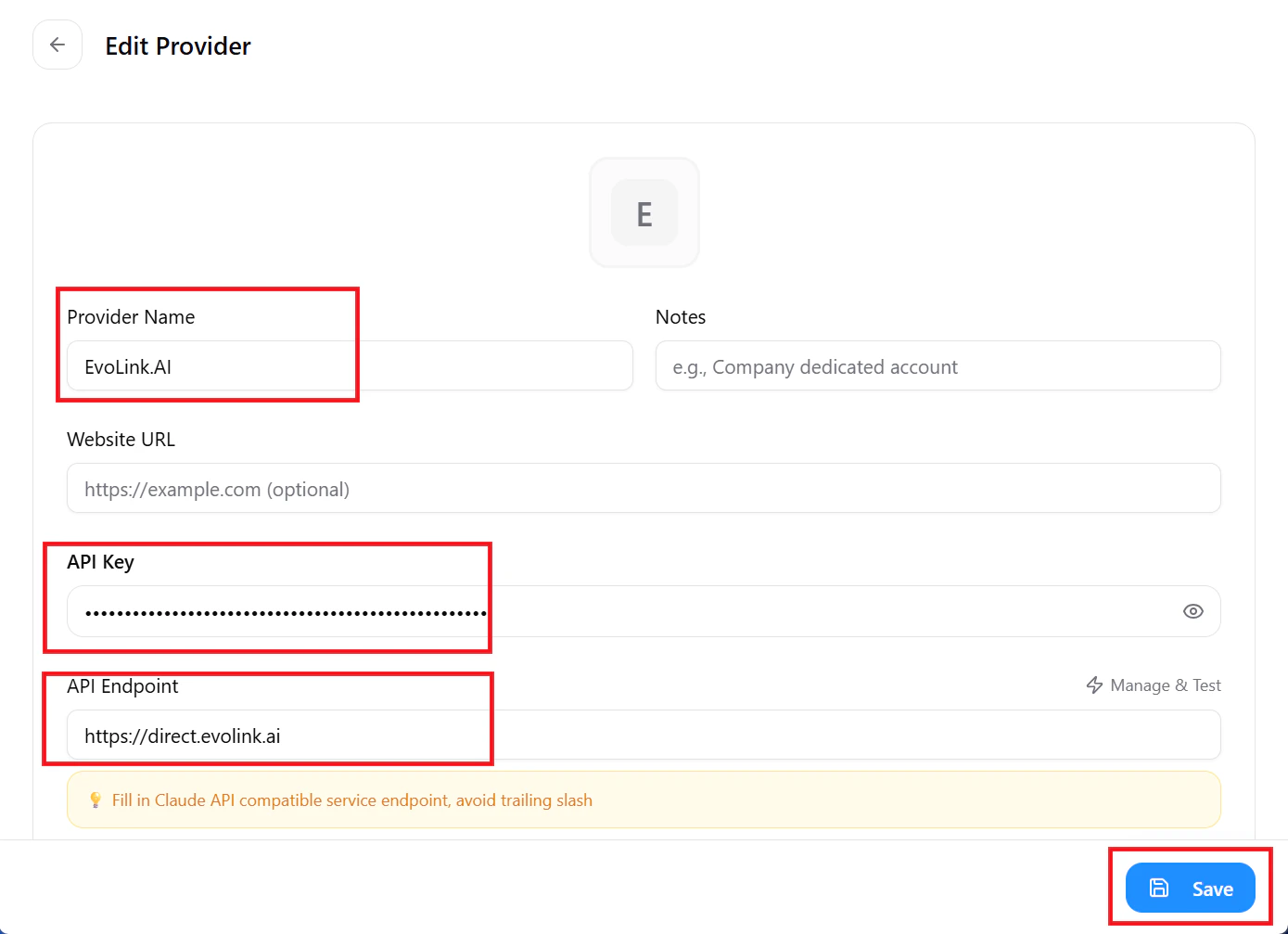
CC Switch is a desktop GUI tool for managing Claude Code provider configurations through a graphical interface, without manually editing config files.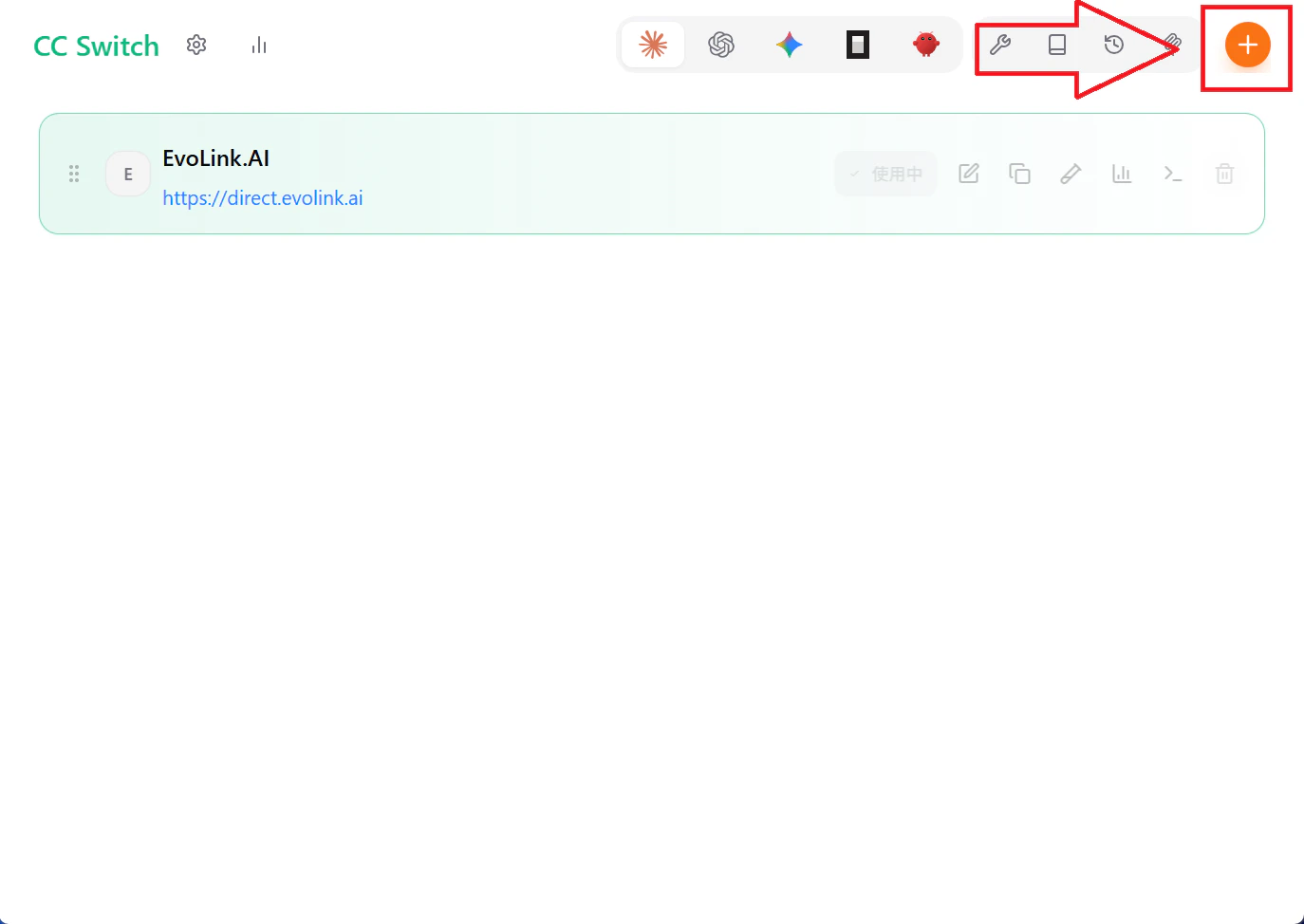
1. Install CC Switch
Download the installer for your platform from GitHub Releases.2. Configure EvoLink
- Open CC Switch
- Click the icon in the top-right corner to enter the configuration page
- Fill in the fields as shown in the image
- Click “Add”
settings.json, no manual operation needed.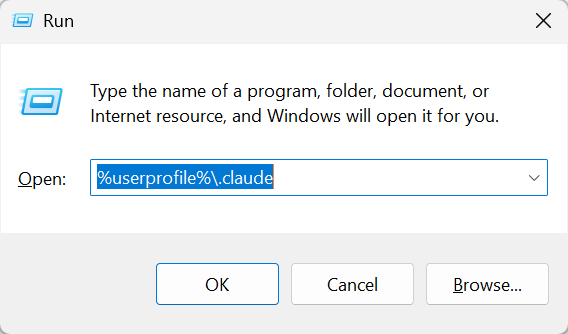
Step 3: Start Using Claude Code CLI
1. Enter a safe working directory
your-working-directory with actual path
2. Interactive mode
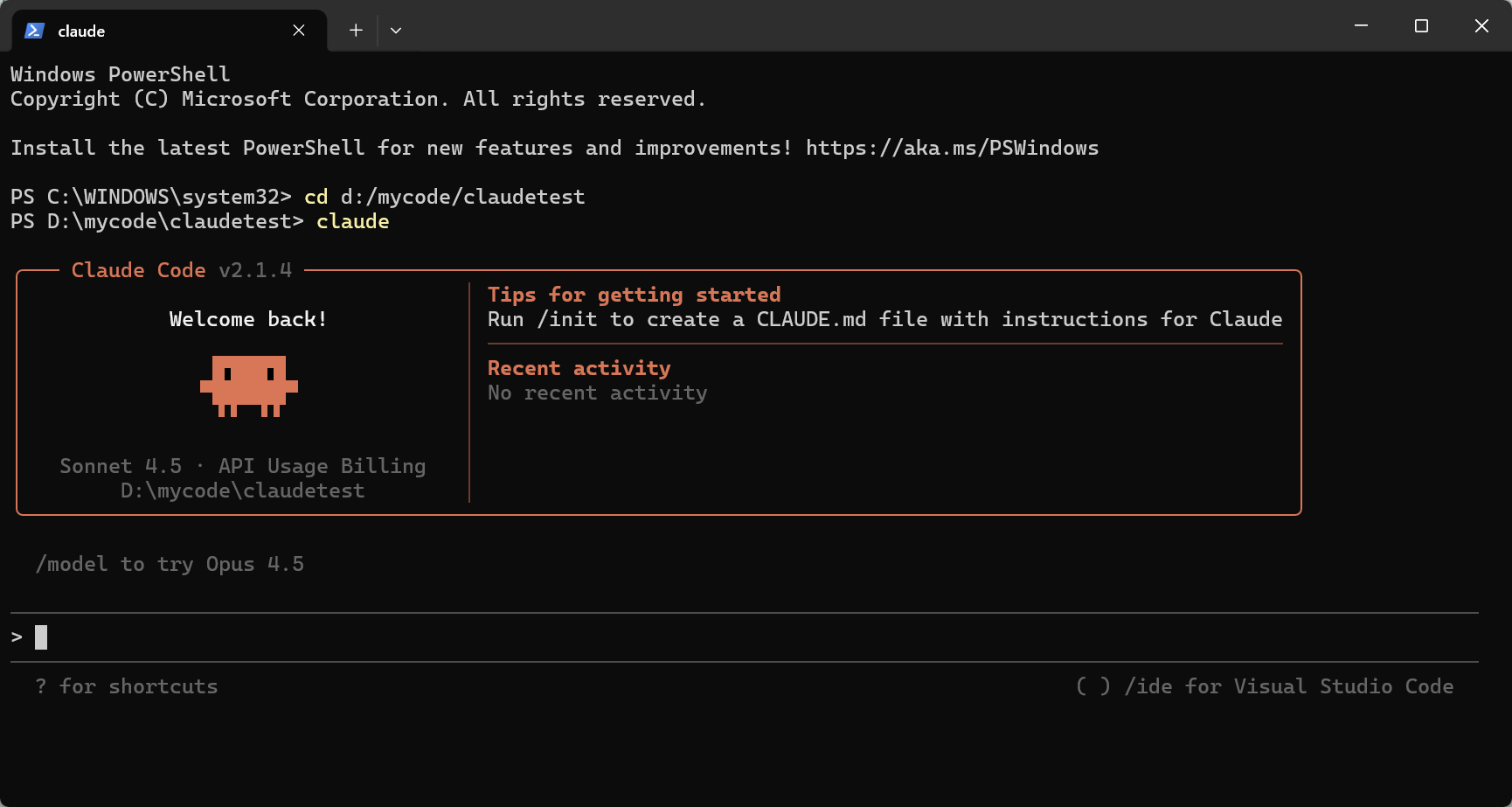
3. Verify configuration
- See AI response text (several lines)
- No errors like
401,403,API Key invalid
401 Unauthorized: API Key not set or invalid → Check settings.json403 Forbidden: Insufficient API Key permissions → Verify API KeyNetwork error: Network issue → Check connection
FAQ
1. What is Claude Code CLI and what is it used for?
Claude Code CLI is the official command-line tool from Anthropic that allows users to interact with Claude models in the terminal. It’s primarily used for code assistance, text generation, Q&A conversations, and file analysis—especially suited for developers who need quick AI capabilities in a command-line environment.2. How do I verify installation and configuration on first use?
Run these commands in sequence:claude --version: Confirm Claude Code CLI is installedclaude "Who are you": Confirm API configuration is correct
3. What’s the difference between interactive mode and single command mode?
- Interactive mode: Run
claudeto enter continuous conversation for multi-turn interactions, ideal for complex tasks - Single command mode: Run
claude "question"to get a single response and exit, ideal for quick queries
4. Will Claude Code CLI automatically read or upload my local files and code?
No. Claude Code CLI only reads file content when you explicitly reference or authorize it, and will request confirmation before performing sensitive operations. It’s recommended to use it in a dedicated project folder.5. How do I use Claude Code CLI to analyze or process local file content?
In interactive mode, you can reference files by:- Typing the file path for Claude to read
- Dragging files into the terminal window
- Copy and pasting file content
6. Does Claude Code CLI support Chinese input and output?
Yes, fully supported. Claude Code CLI supports Chinese input and output—you can ask questions in Chinese and receive Chinese responses.7. No output after execution—what could be the cause?
Common causes include:- Network connection issues preventing API server access
- Invalid API Key or insufficient balance
- Incorrect
ANTHROPIC_BASE_URLconfiguration - Firewall or proxy blocking requests
8. Why don’t my config file or environment variable changes take effect?
- Restart your terminal or command line window
- Check that
settings.jsonhas valid JSON syntax - Verify the config file path:
- Windows:
C:\Users\{username}\.claude\settings.json - macOS / Linux:
~/.claude/settings.json
- Windows:
9. What causes 401/403 errors?
- 401 error:
ANTHROPIC_AUTH_TOKENnot set or invalid API Key - 403 error: Insufficient API Key permissions or expired key
- Verify
ANTHROPIC_BASE_URLis set tohttps://direct.evolink.ai
10. What scenarios is Claude Code CLI suited for? What is it not suited for?
Suited for:- Code writing, debugging, and refactoring
- Quick Q&A in command-line environments
- File content analysis and processing
- Automation script integration
- Complex interactions requiring a graphical interface
- Real-time collaborative editing
- Large-scale batch file processing
11. How do I switch models?
Type/model in interactive mode to switch models.
12. What Claude models does EvoLink support?
EvoLink supports the following Claude models:13. How do I upload images?
- Option 1: Reference the image path
- Option 2: Drag and drop an image into the terminal
- Option 3: Paste an image directly
14. How to open command line terminal?
- Windows
- macOS
- Linux
- Method 1: Press
Win + R, typecmdorpowershell, then press Enter - Method 2: Search for “Command Prompt” or “PowerShell” in the Start menu
- Method 3: Hold Shift and right-click in a folder, select “Open PowerShell window here”