Overview
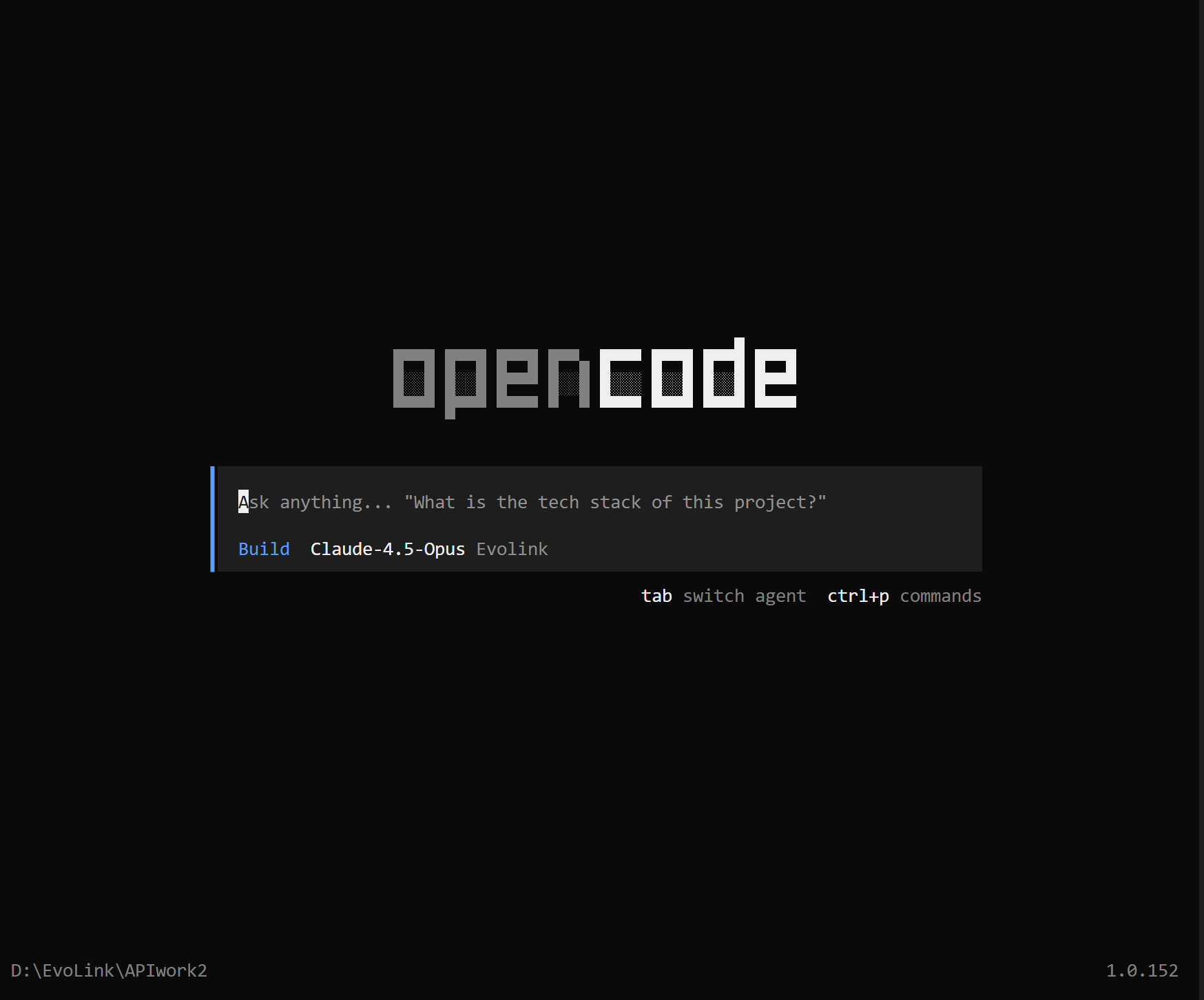
Prerequisites
Before configuring, make sure you have:1. Terminal Emulator
OpenCode requires a modern terminal emulator. Recommended options:- WezTerm (cross-platform)
- Alacritty (cross-platform)
- Ghostty (Linux and macOS)
- Kitty (Linux and macOS)
2. Get EvoLink API Key
- Log in to EvoLink Dashboard
- Find API Keys in the dashboard, click ‘Create New Key’ button, then copy the generated Key
- API Key usually starts with
sk-
Step 1: Install OpenCode
Tip: If you don’t know how to open a command line terminal, see FAQ - How to open command line terminal
- macOS / Linux
- Windows
The easiest way is through the install script:Or using Homebrew:
Verify Installation
Step 2: Configure EvoLink API
1. Initialize Provider
After installation, run the following command in your terminal before launching OpenCode: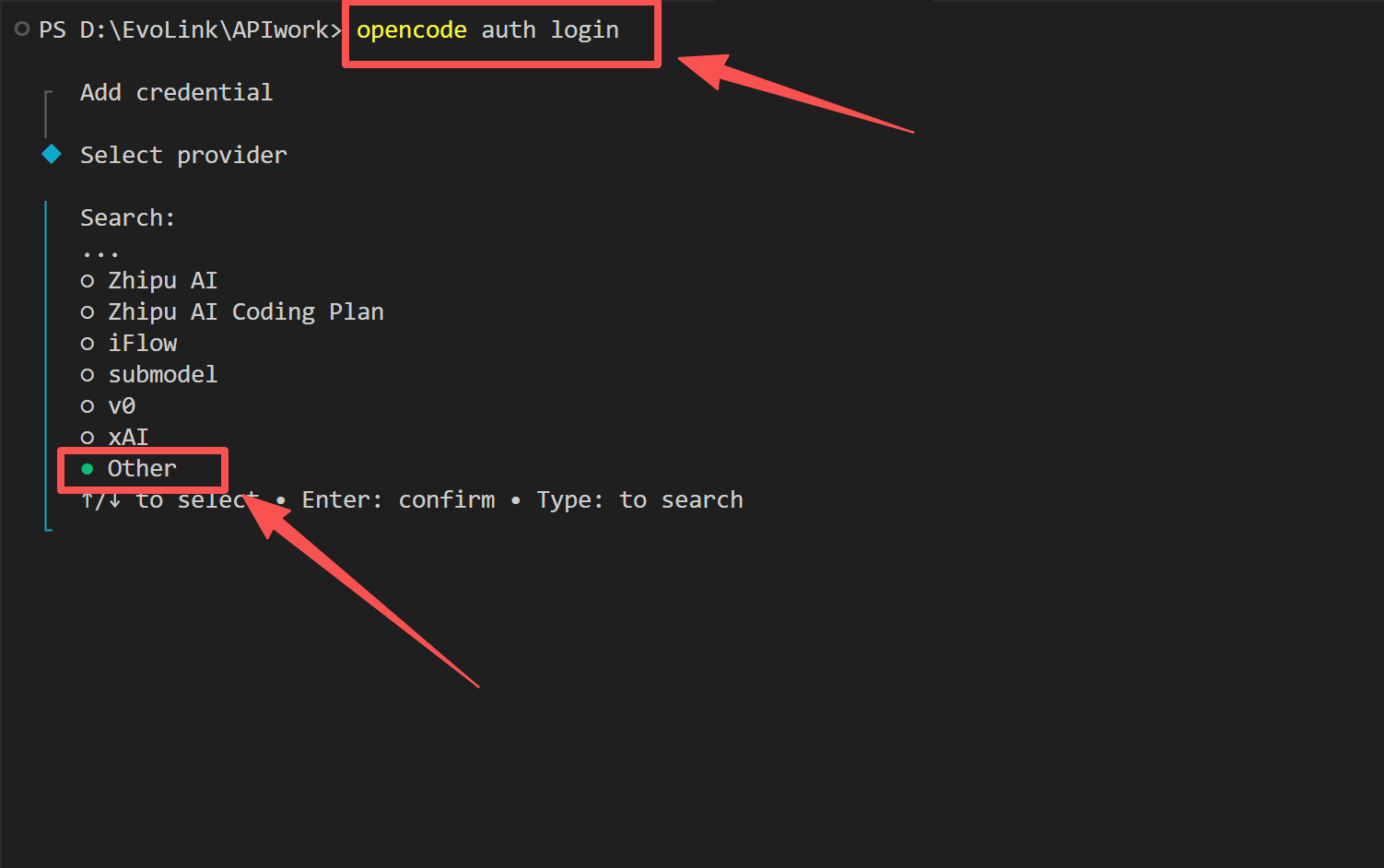
- In the provider list, select other (at the bottom, you can search for it)
-
Enter Provider ID: type
evolink-anthropic
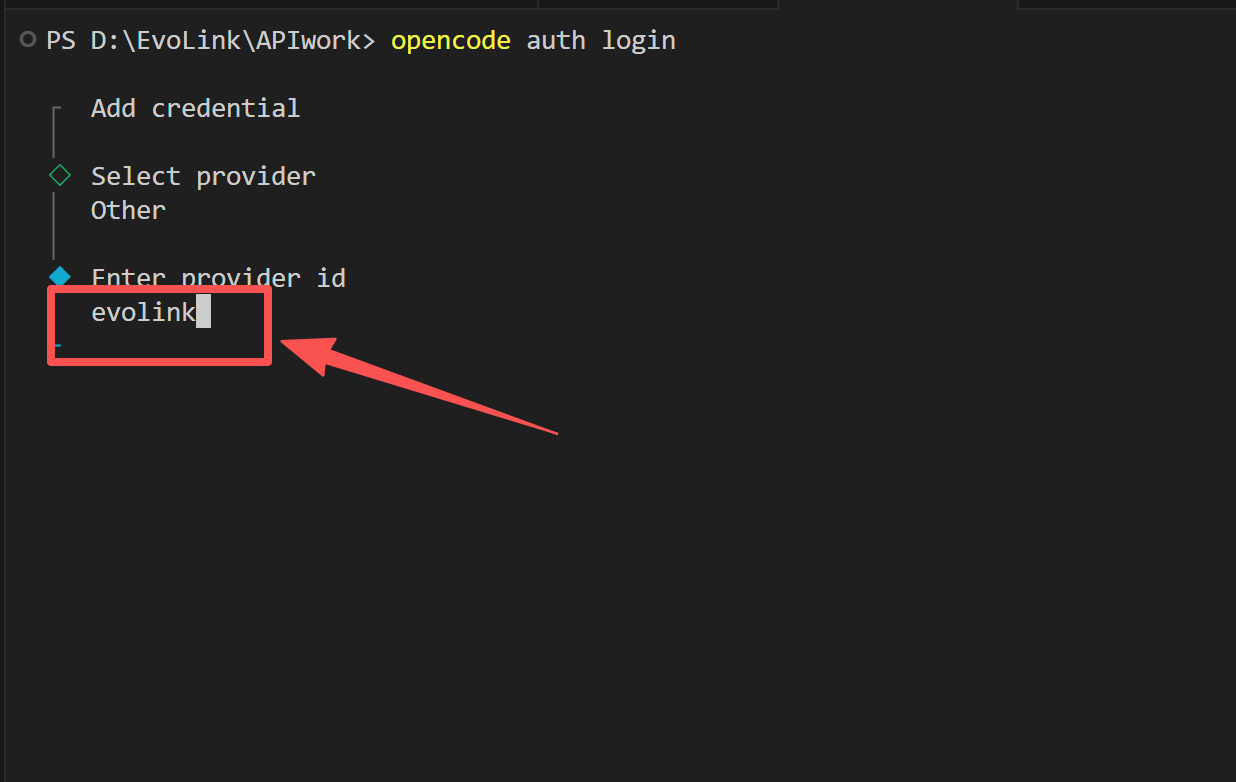
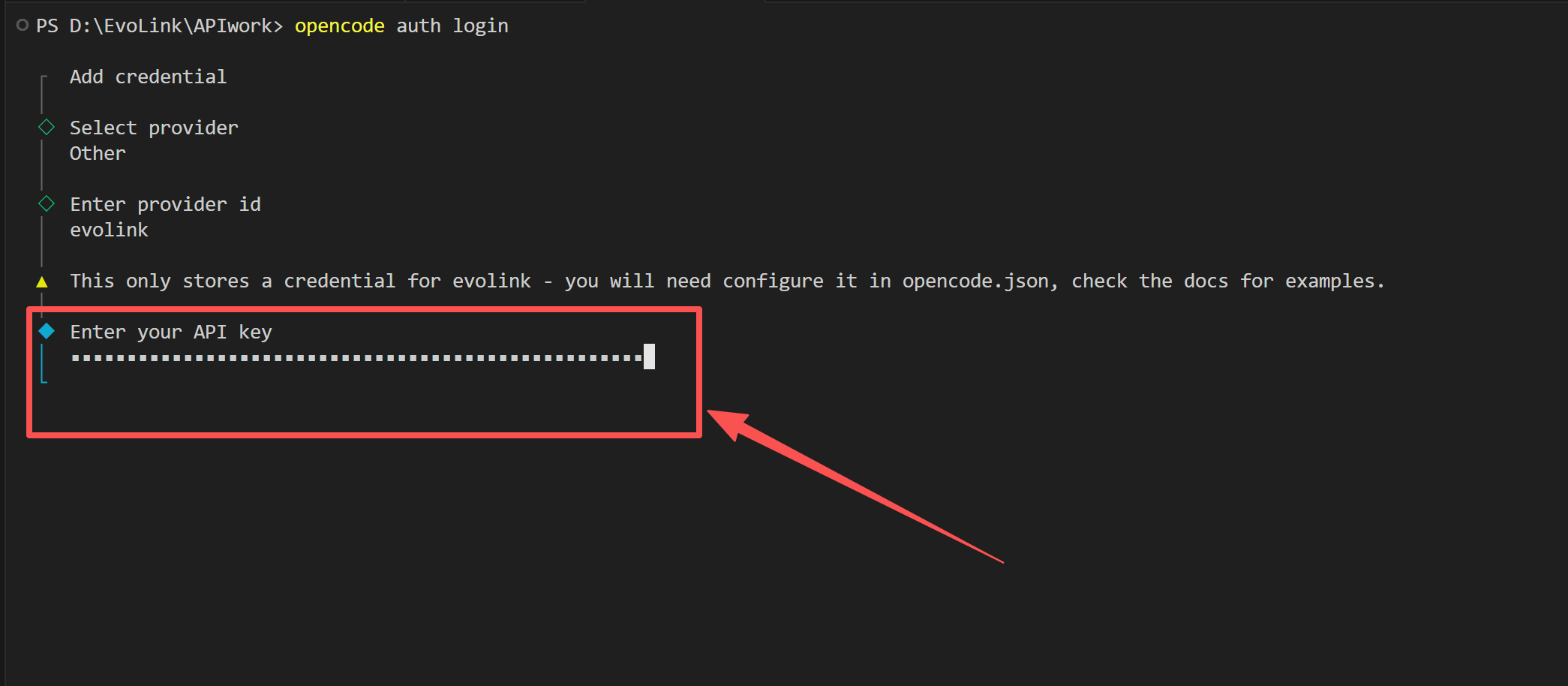
- Enter API Key token: you can enter any value (e.g.,
admin), the actual key is referenced via config file
2. Edit Config File
Open the OpenCode config directory:- Windows
- macOS / Linux
Press
Win + R, paste the following, then press Enter:opencode.json in this directory:
- Replace
"Your EvoLink API Key"with your actual API Key - JSON format is sensitive to symbols
Step 3: Start Using OpenCode
1. Launch OpenCode
After saving the config file, restart your terminal, then navigate to your working directory:2. Verify Configuration
In the chat interface, enter the command: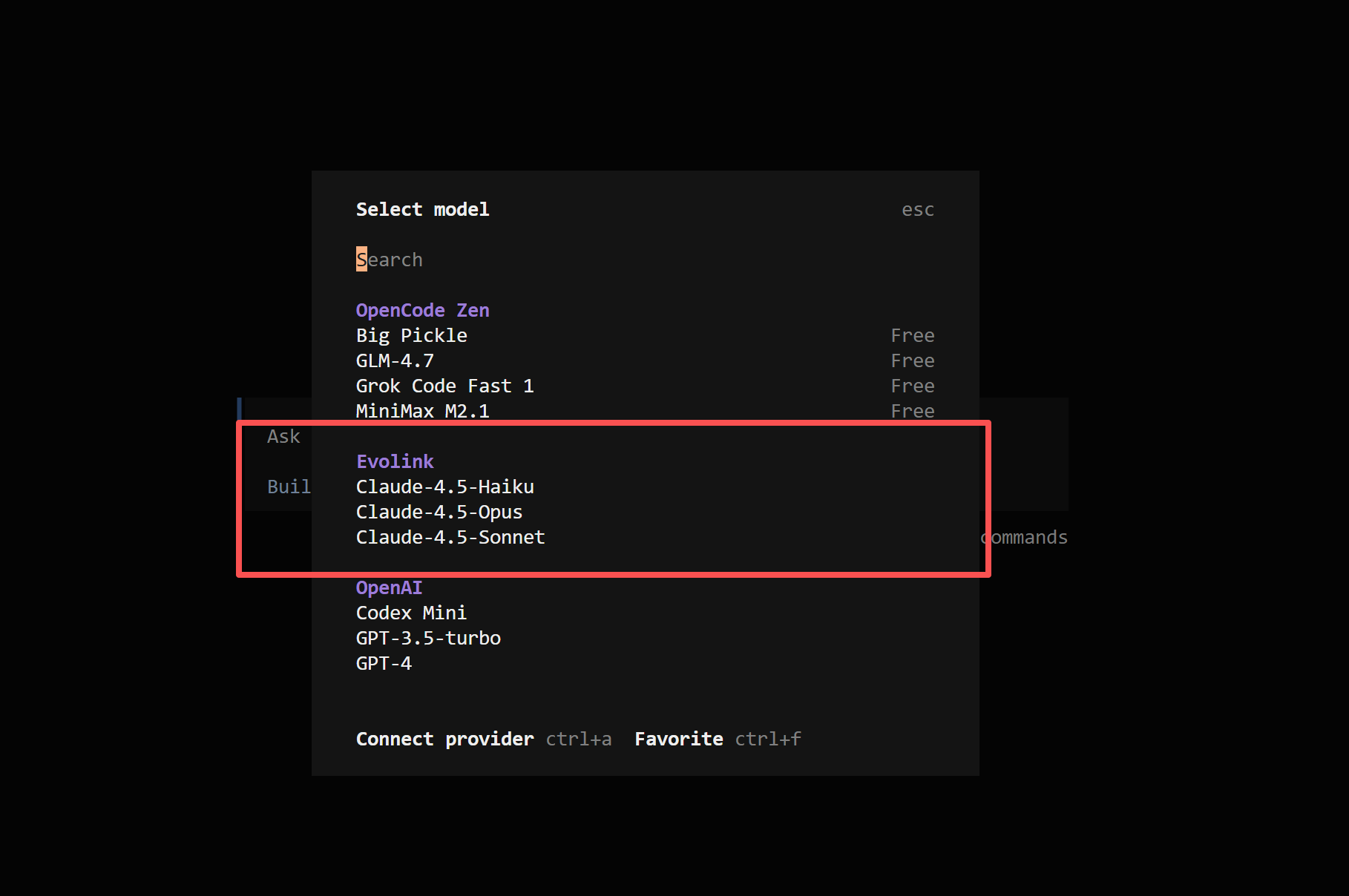
FAQ
1. What is OpenCode and what is it used for?
OpenCode is an open-source terminal AI coding assistant with a modern TUI interface. It supports code editing, file operations, and command execution, ideal for AI-assisted programming in terminal environments.2. How do I verify installation and configuration on first use?
Run these steps in sequence:opencode --version: Confirm OpenCode is installed- Launch OpenCode and enter
/models: Confirm you can see the configured models
3. Where should the config file be placed?
Theopencode.json config file should be placed at:
- Windows:
C:\Users\{username}\.config\opencode\opencode.json - macOS / Linux:
~/.config/opencode/opencode.json
4. What models does OpenCode support?
Through EvoLink API, OpenCode supports the following models: Claude series:- Claude Opus 4.6 / Sonnet 4.6: Latest generation models
- Claude 4.5 Opus / Sonnet / Haiku: High-performance model family
- Gemini 2.5 Flash / Pro: Latest generation balanced models
- Gemini 3.0 Flash / Pro: Next-generation high-performance models
- Gemini 3.1 Flash Lite / Pro: Newest generation models with enhanced capabilities
- GPT-5.1 / 5.2 / 5.4 / 5.5: OpenAI latest models
- MiniMax M2.5: MiniMax high-performance model
5. How do I switch models?
In the OpenCode interface, enter the/models command, then select your desired model from the list.
6. Why don’t my config changes take effect?
- Restart OpenCode
- Check
opencode.jsonsyntax (JSON format) - Verify config file path is correct
7. What causes 401/403 errors?
- 401 error: API Key not set or invalid
- 403 error: Insufficient permissions or expired key
- Check the
apiKeyin your config file
8. Will OpenCode automatically read or upload my local files and code?
OpenCode only reads file content when you explicitly authorize it. It’s recommended to use it in a dedicated project folder.9. Does OpenCode support Chinese input and output?
Yes, fully supported.10. What scenarios is OpenCode suited for?
Suited for:- Code writing, debugging, and refactoring
- AI-assisted programming in terminal environments
- File content analysis and processing
- Users who prefer modern TUI interfaces
- Complex GUI interactions
- Users unfamiliar with terminal operations
11. How to open command line terminal?
- Windows
- macOS
- Linux
- Method 1: Press
Win + R, typecmdorpowershell, then press Enter - Method 2: Search for “Command Prompt” or “PowerShell” in the Start menu
- Method 3: Hold Shift and right-click in a folder, select “Open PowerShell window here”