Overview
- Installing Claude Desktop
- Enabling Developer Mode
- Configuring the EvoLink connection
- Restarting and selecting a model
Prerequisites
Before you start, prepare your EvoLink API Key.Get an EvoLink API Key
- Log in to the EvoLink Console
- Find API Keys in the console, click Create New Key, then copy the generated key
- API keys usually start with
sk-; keep them safe
Step 1: Download Claude Desktop
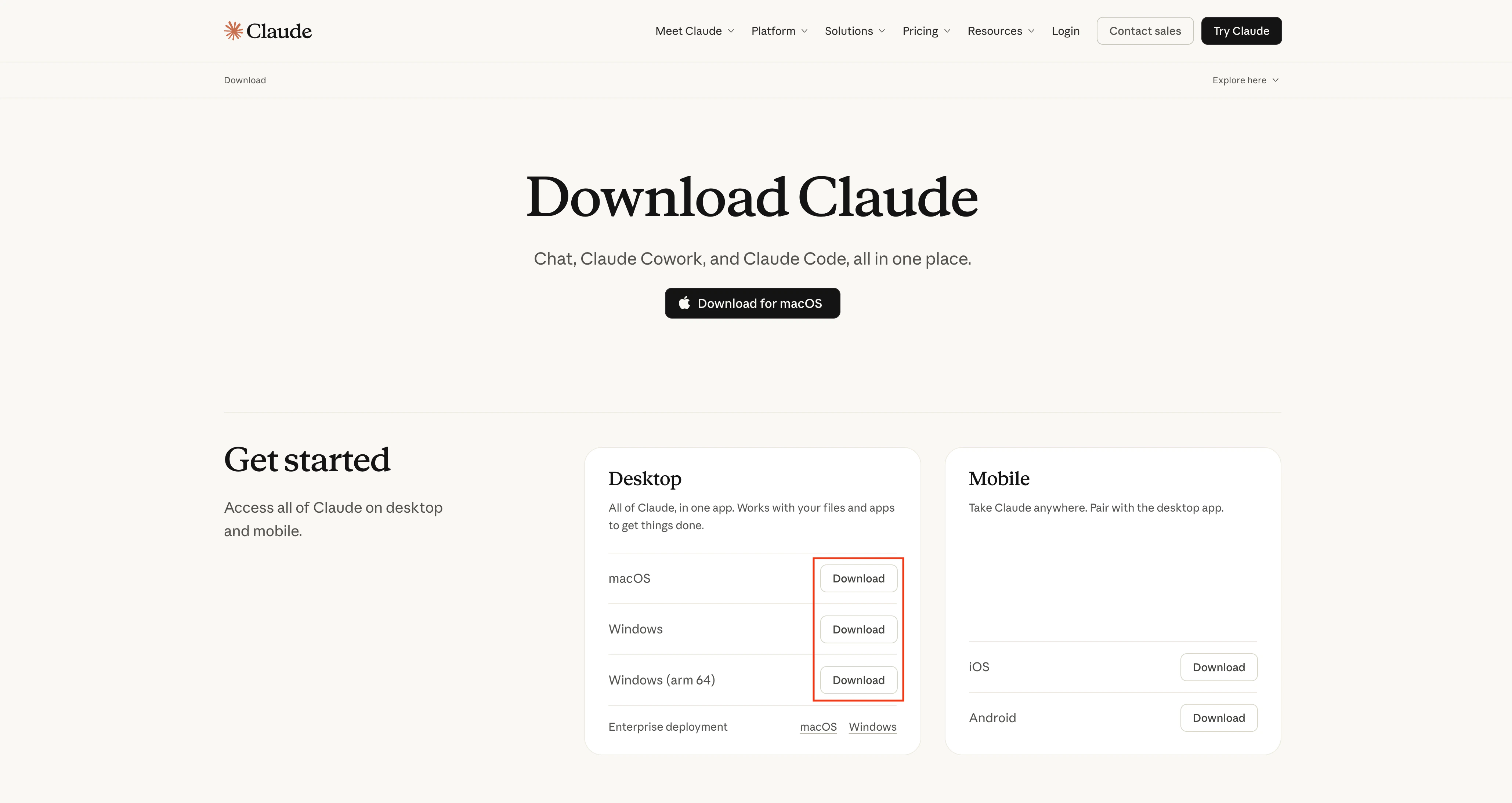
Visit the Claude Desktop download page and install the version for your operating system.Tip: If Claude Desktop is not installed yet, complete the installation before continuing.
After installation
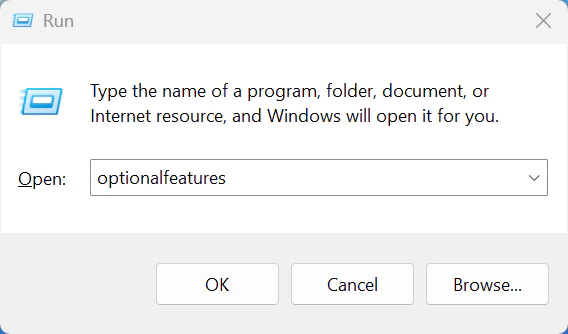
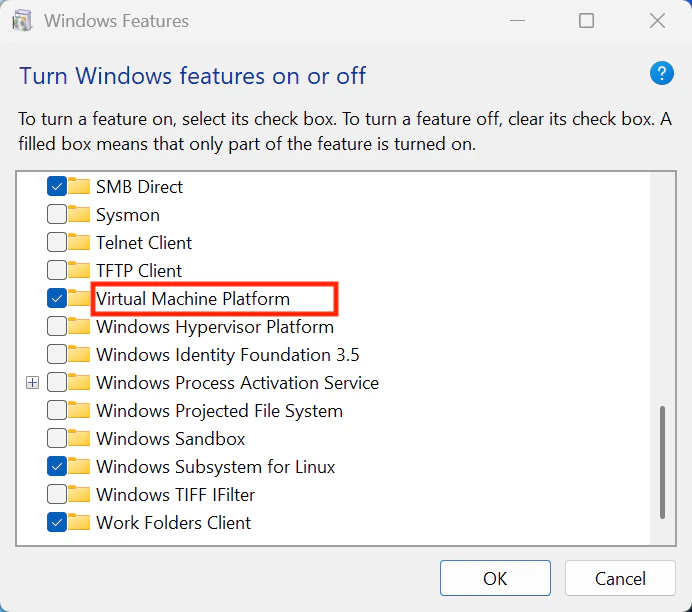
After installation, confirm that Claude Desktop starts normally.Step 2: Enable Developer Mode
- macOS
- Windows
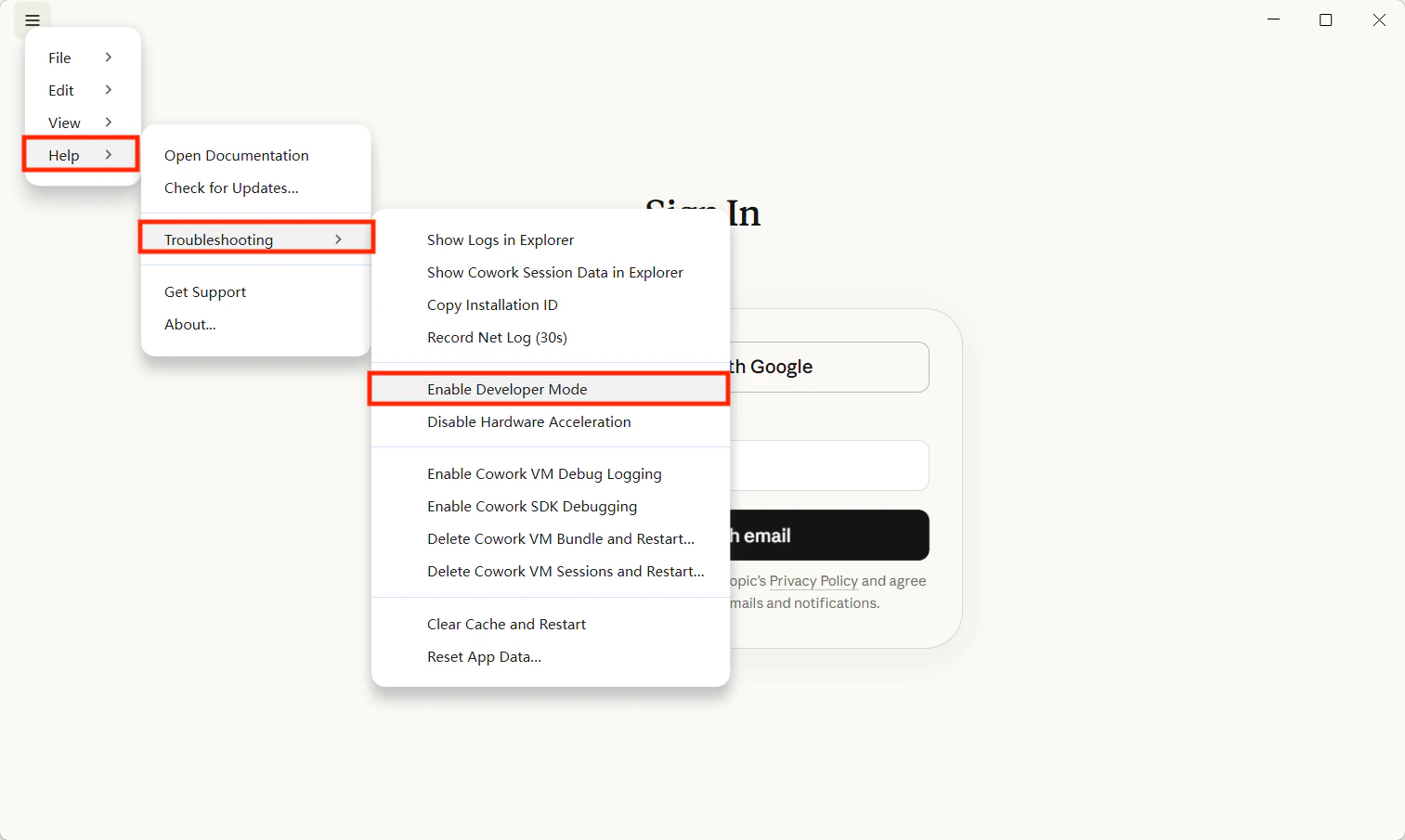
After launching Claude Desktop, click Help → Troubleshooting and enable Developer Mode in the dialog.Once enabled, a Developer menu entry appears for third-party inference configuration.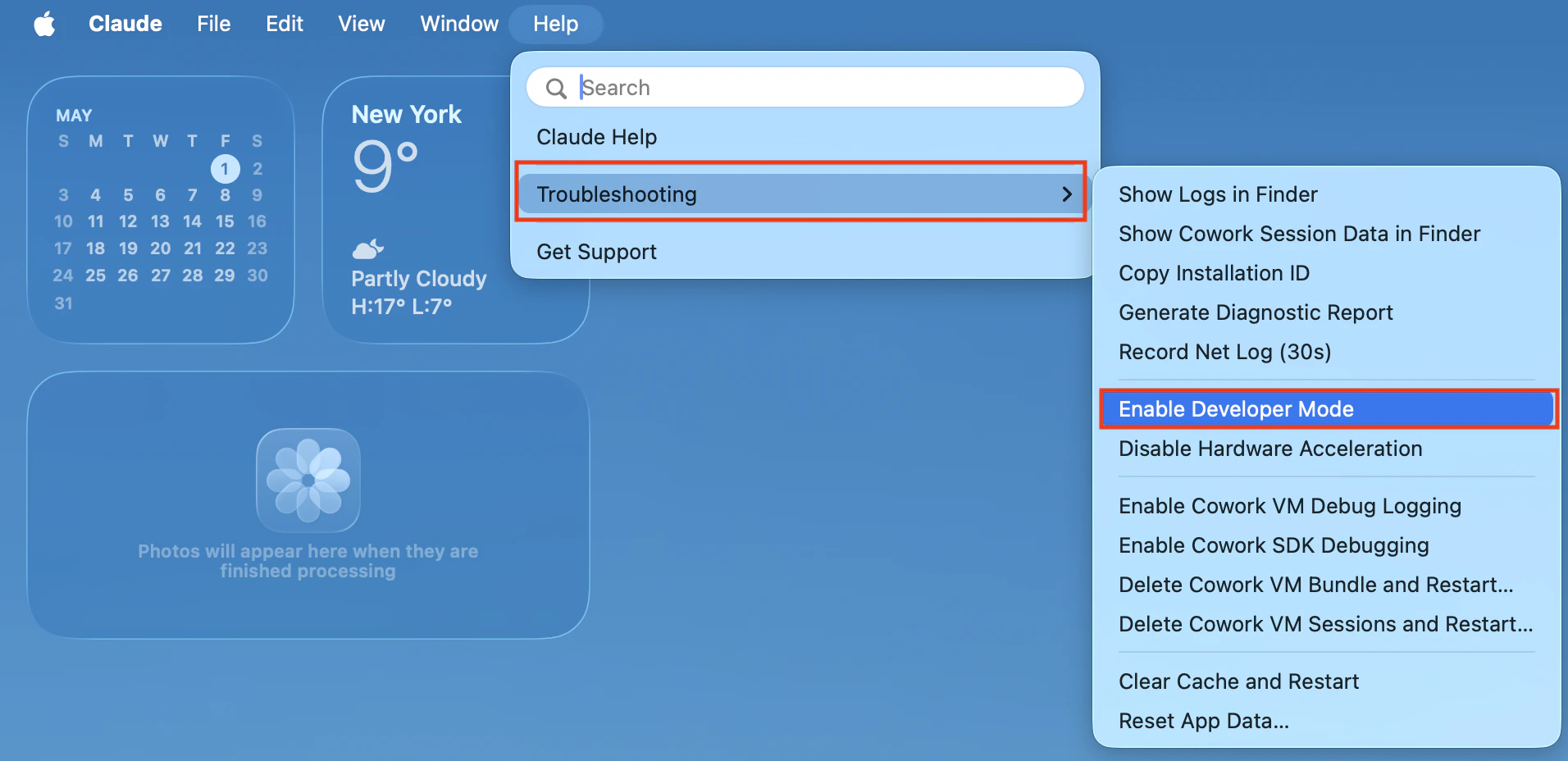
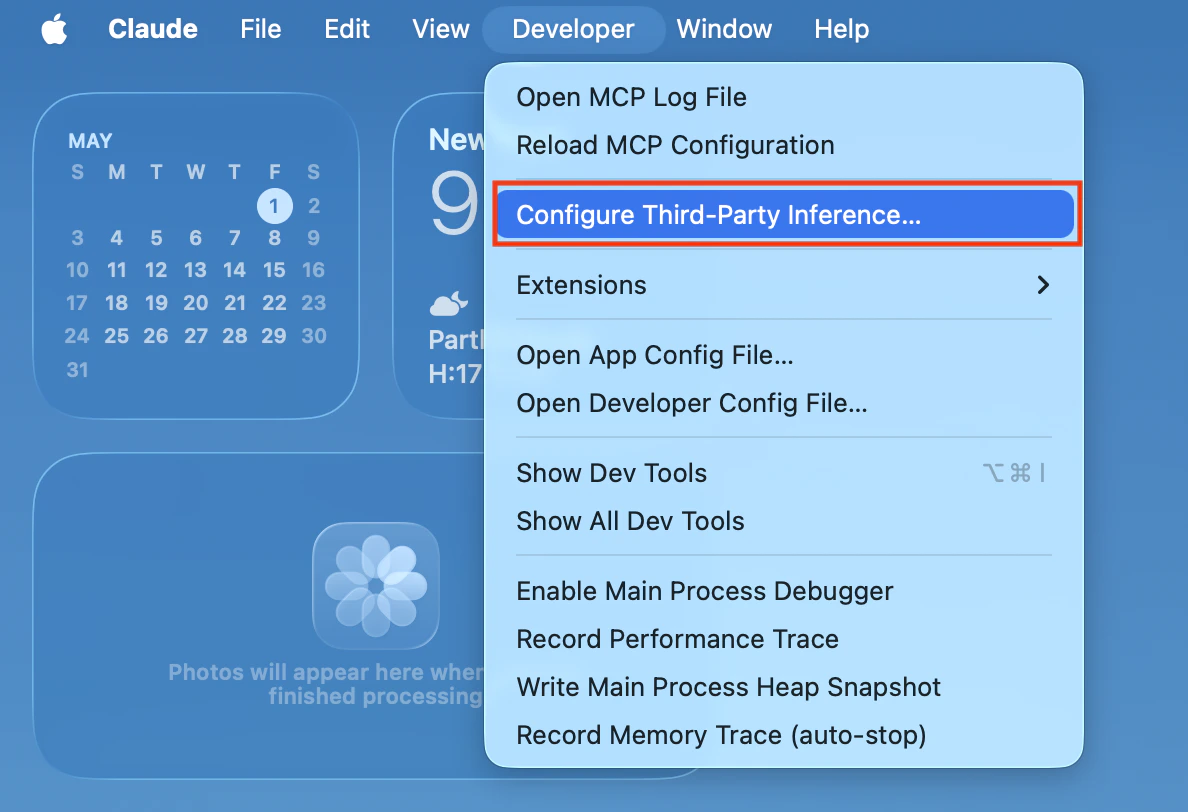
Tip: If you do not see the Developer entry, confirm that your Claude Desktop version supports Developer Mode and third-party inference settings.
Step 3: Open Third-Party Inference Settings
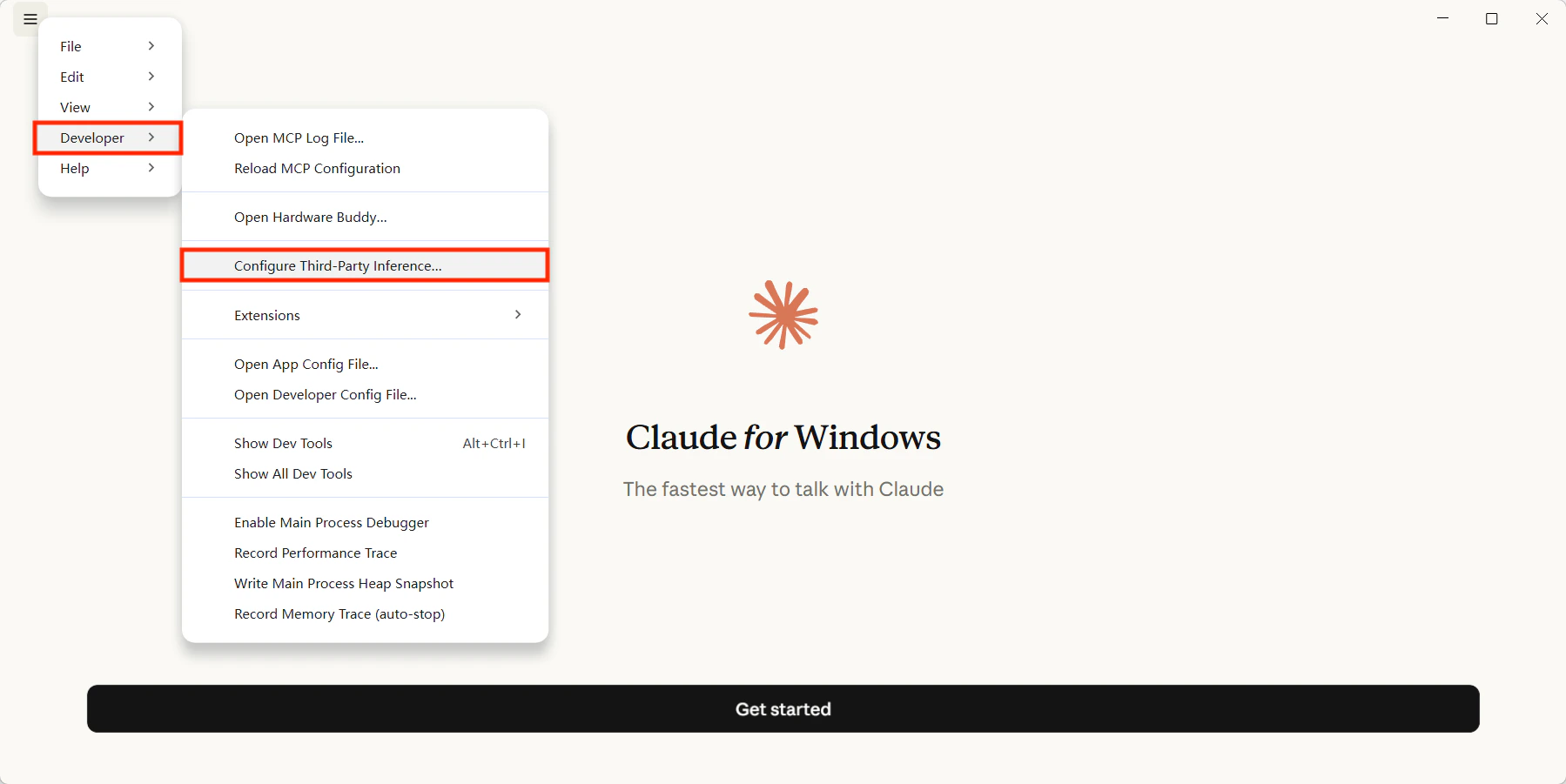
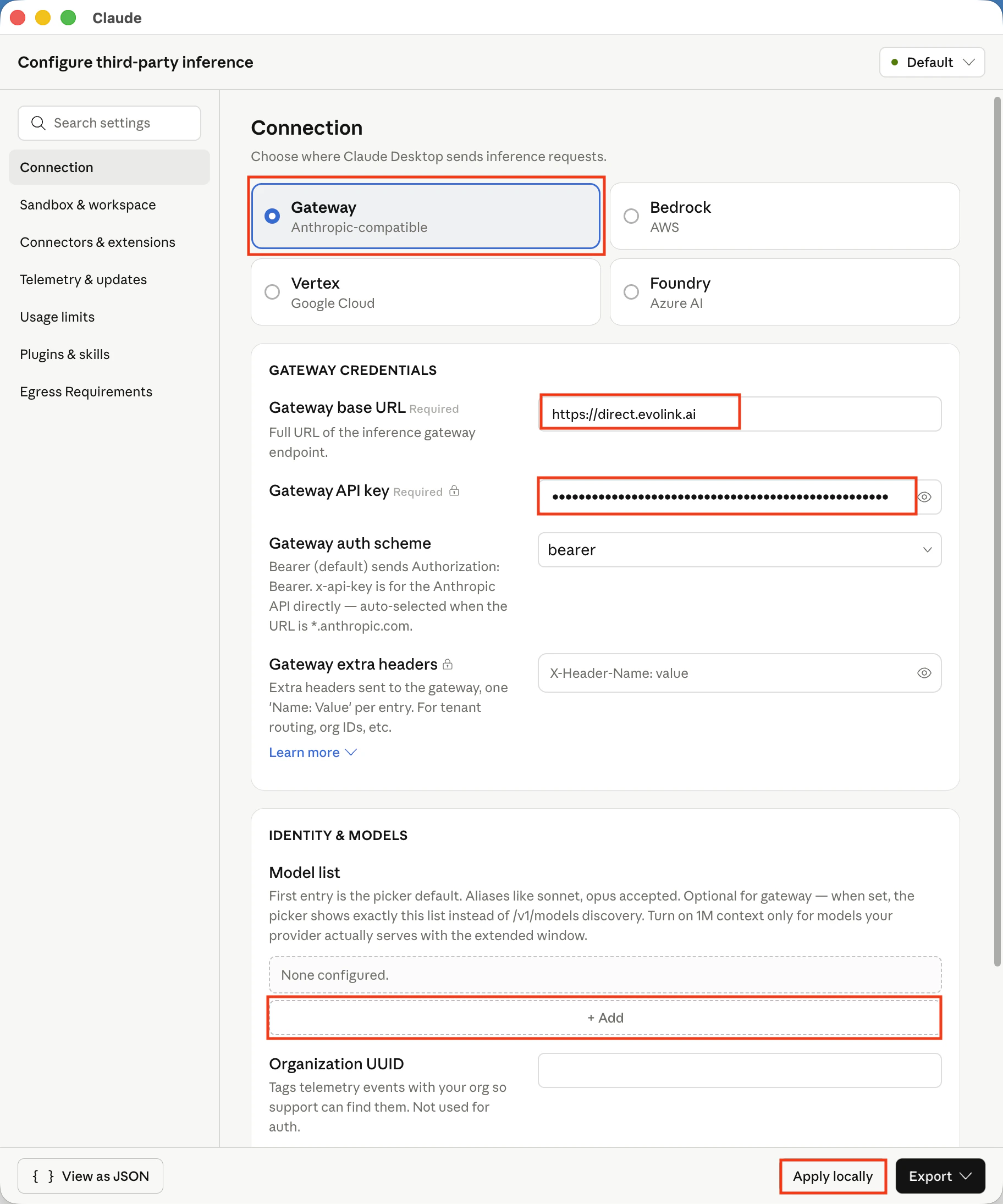
In the Developer menu, open the third-party inference panel and fill it in as shown below:| Field | Description |
|---|---|
| Gateway base URL | EvoLink gateway address, recommended value: https://direct.evolink.ai |
| Gateway API key | Enter your EvoLink API Key directly, without the Bearer prefix |
| Gateway auth scheme | bearer |
| Model list | Recommended. Add only text/chat model IDs that support the Anthropic Messages API. You can also jump to the supported models table below |
Note: If the field names in your Claude Desktop version are slightly different, use the actual interface labels, but keep the meaning the same.
Step 4: Save and Restart
After saving the configuration, fully quit Claude Desktop, then launch it again.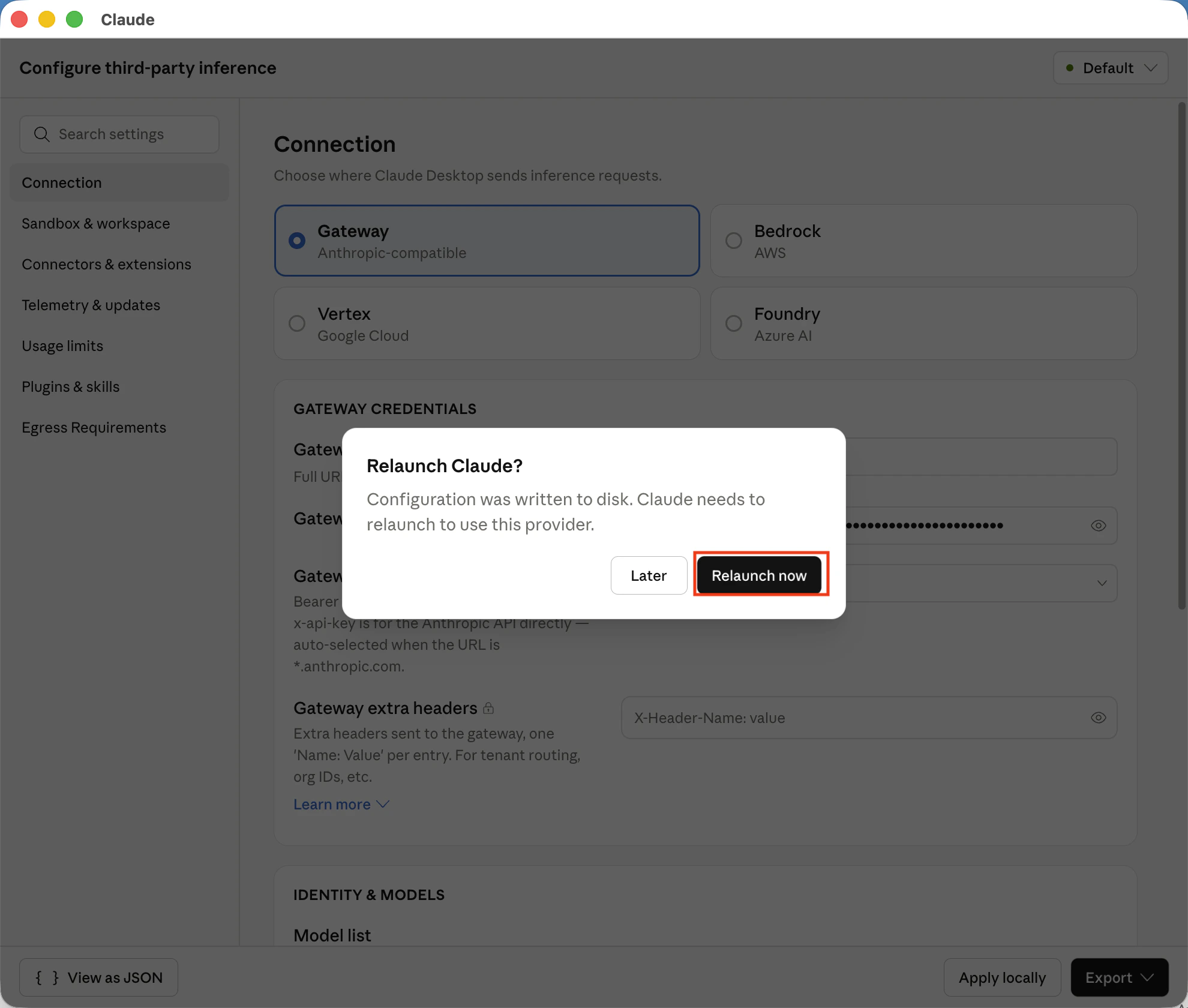
Step 5: Choose a Model
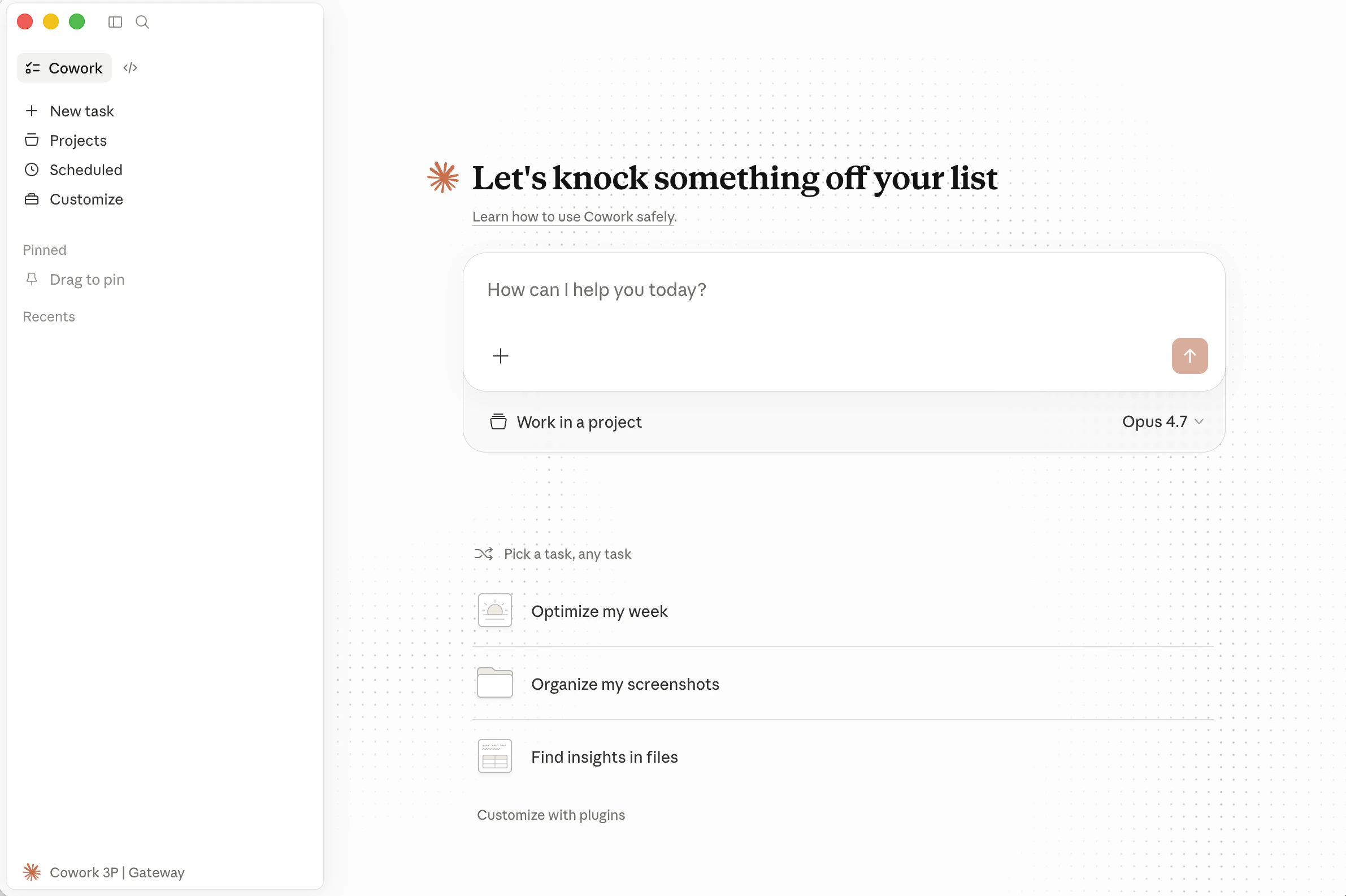
After restarting, check the model selector to confirm that the available models appear correctly.How It Works
Claude Desktop communicates with EvoLink through an Anthropic-compatible gateway:- Claude Desktop sends requests to the gateway address you configured.
- EvoLink receives the request and forwards it to the corresponding model service.
- After the response returns, Claude Desktop continues showing the conversation locally.
Supported Models
If you want to restrict the visible models inModel list, you can use the following model IDs.
| Model ID |
|---|
claude-haiku-4-5-20251001 |
claude-sonnet-4-5-20250929 |
claude-opus-4-5-20251101 |
claude-sonnet-4-6 |
claude-opus-4-6 |
claude-fable-5 |
claude-opus-4-8 |
claude-opus-4-7 |
deepseek-v4-flash |
deepseek-v4-pro |
FAQ
Developer menu does not appear
Confirm that Developer Mode is enabled and that Claude Desktop has been fully restarted.I cannot connect after configuring it
Check the following:- Whether the base URL is correct
- Whether the API key is valid
- Whether the authentication scheme is
bearer - Whether Claude Desktop has been fully closed and reopened