Overview
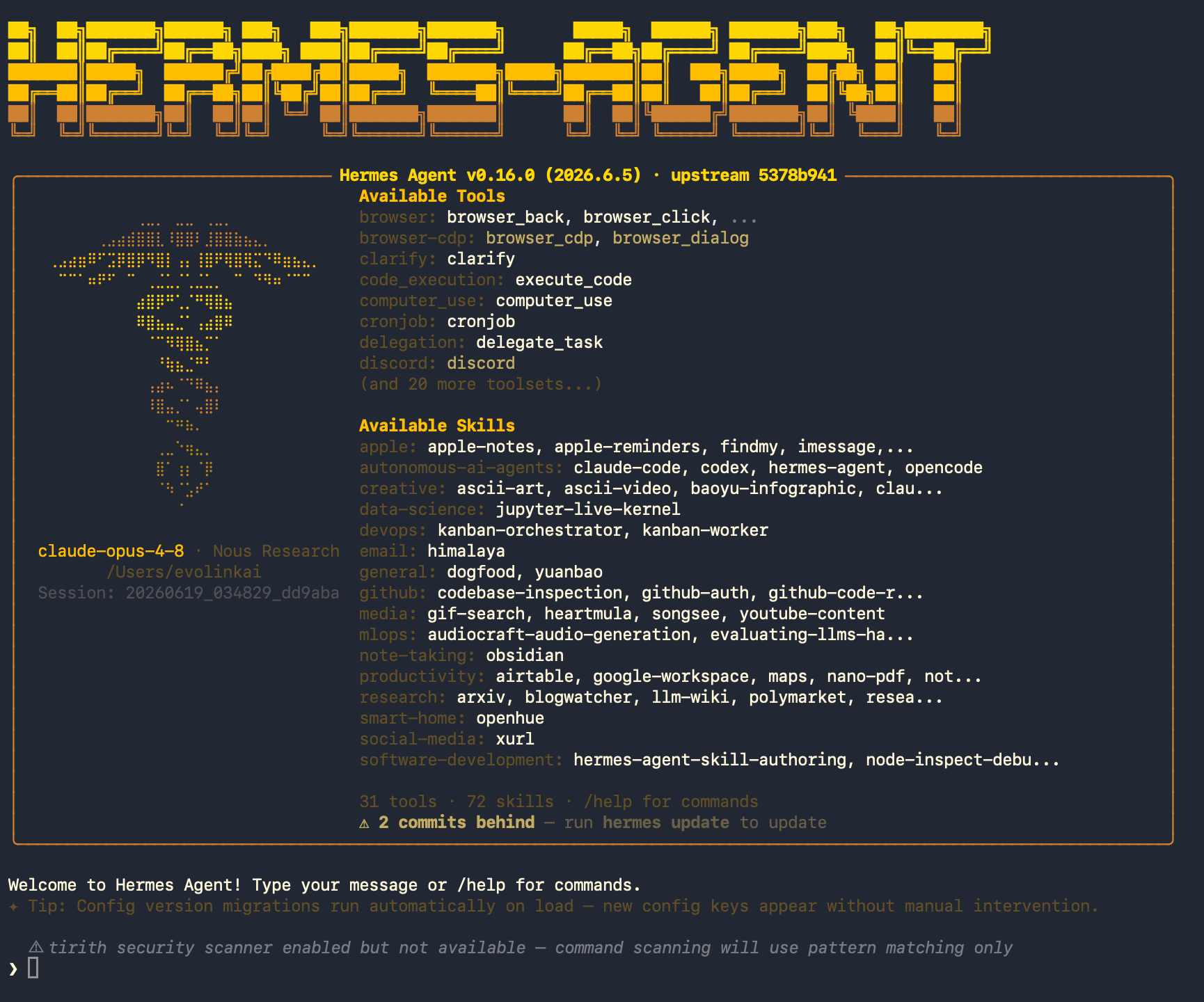
Note the distinction: Hermes Agent is an open-source command-line application (MIT licensed). It is not the same as Nous Research’s Hermes 3 / Hermes 4 models. This guide covers the Hermes Agent tool.
Before You Begin
Before starting the configuration, make sure you have completed the following preparations:1. System and Model Requirements
- Terminal environment: Hermes Agent runs in the command line on macOS, Linux, and Windows (native or WSL2).
- Model context requirement: Hermes Agent recommends using a model with a context length of at least 64K (64,000) tokens. Because the system prompt and tool definitions themselves consume a significant amount of context, a window that is too small may fill up and leave no room for conversation, causing it to be rejected at startup. If you encounter context-related errors, simply switch to a model with a larger context (EvoLink’s Claude / Gemini families all meet this requirement).
2. Get an EvoLink API Key
- Log in to the EvoLink console
- Find API Keys in the console, click the “Create New Key” button, then copy the generated key
- The API Key usually starts with
sk-. Please keep it safe.
Step 1: Install Hermes Agent
Tip: If you don’t know how to open a command-line terminal, see FAQ - How to open a command-line terminal
- macOS / Linux
- Windows
Run the one-line install script in your terminal: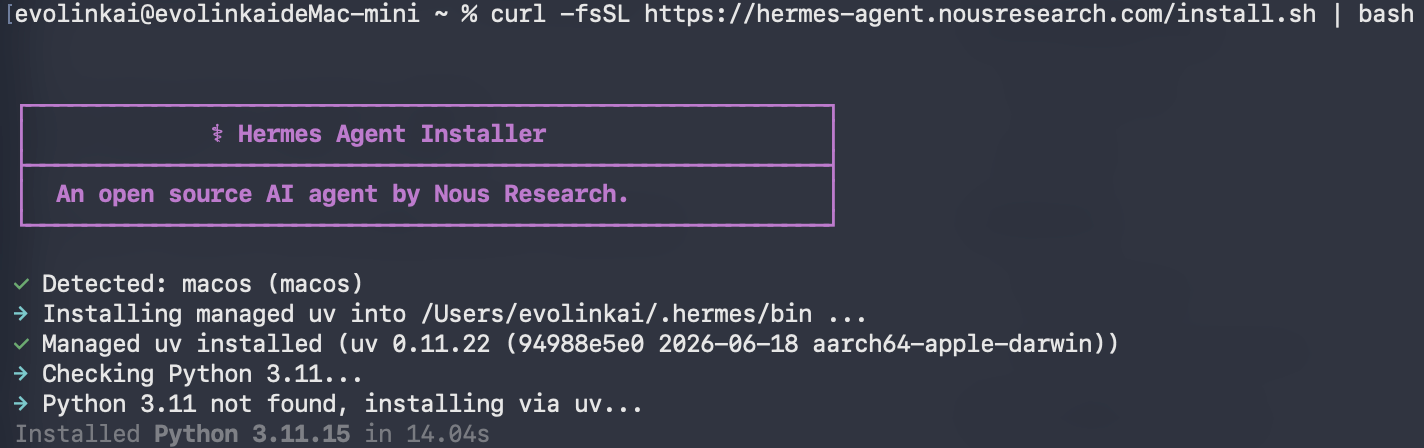

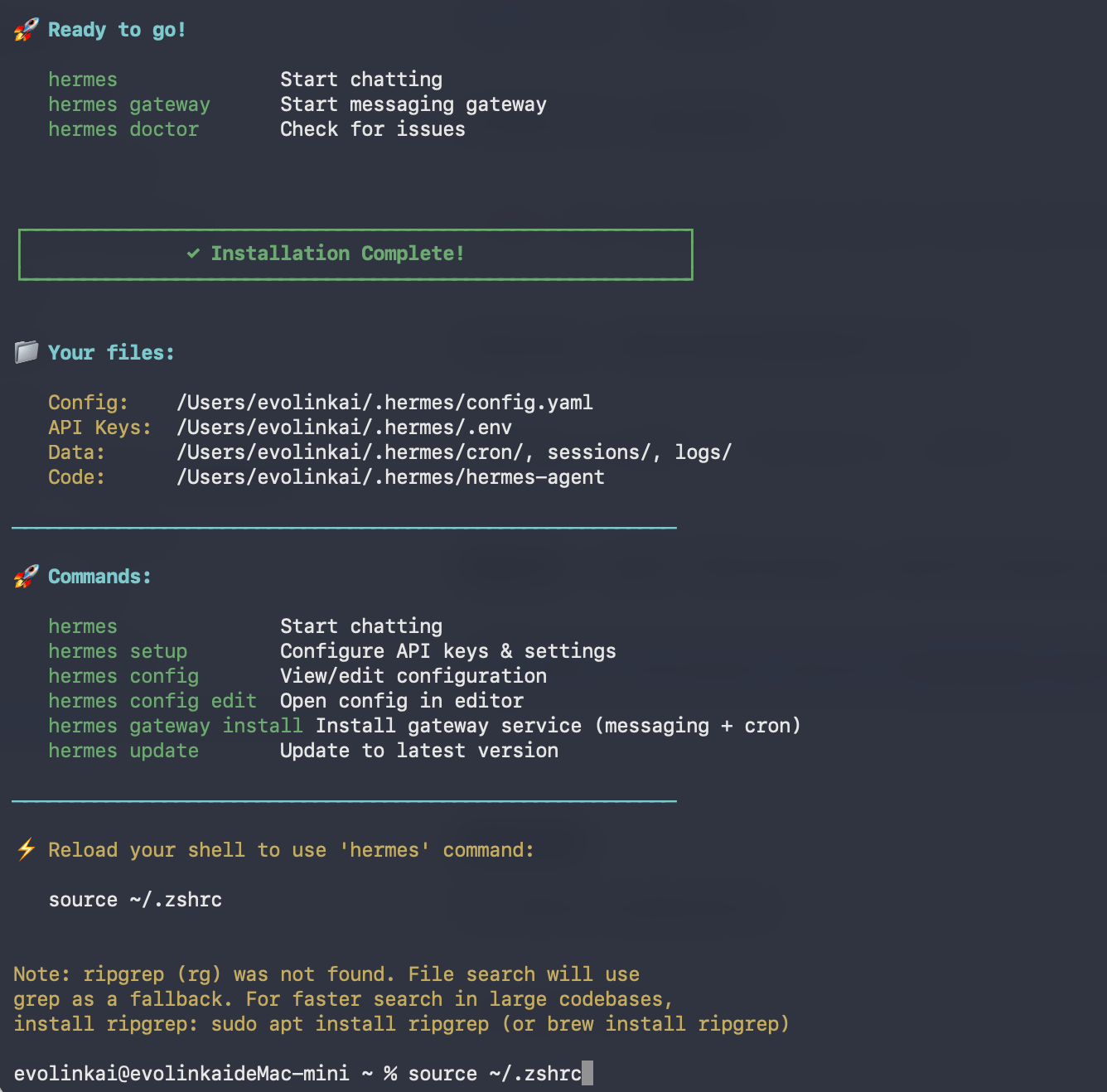
hermes for the first time launches an interactive install wizard, which first asks how you would like to set up Hermes:- Quick Setup (Nous Portal) — Sign in via the free Nous OAuth, no API Key required, with models and tools configured automatically for the fastest start. However, it uses Nous Portal’s models by default, not EvoLink. To connect EvoLink, you’ll need to run
hermes modelseparately after installation (see Step 2). - Full setup — You configure each provider, tool, and option yourself (using your own key). This is the recommended option for users who want to connect EvoLink directly, as you can enter EvoLink’s endpoint URL and key in one go during installation.
Choose Full setup
Use the arrow keys to select Full setup — configure every provider, tool & option yourself (bring your own keys), then press Enter to confirm.
Select provider: Custom endpoint
In the provider list, scroll down and select custom endpoint (enter URL manually). Because EvoLink provides an OpenAI-compatible endpoint, you connect via the “custom endpoint” option here.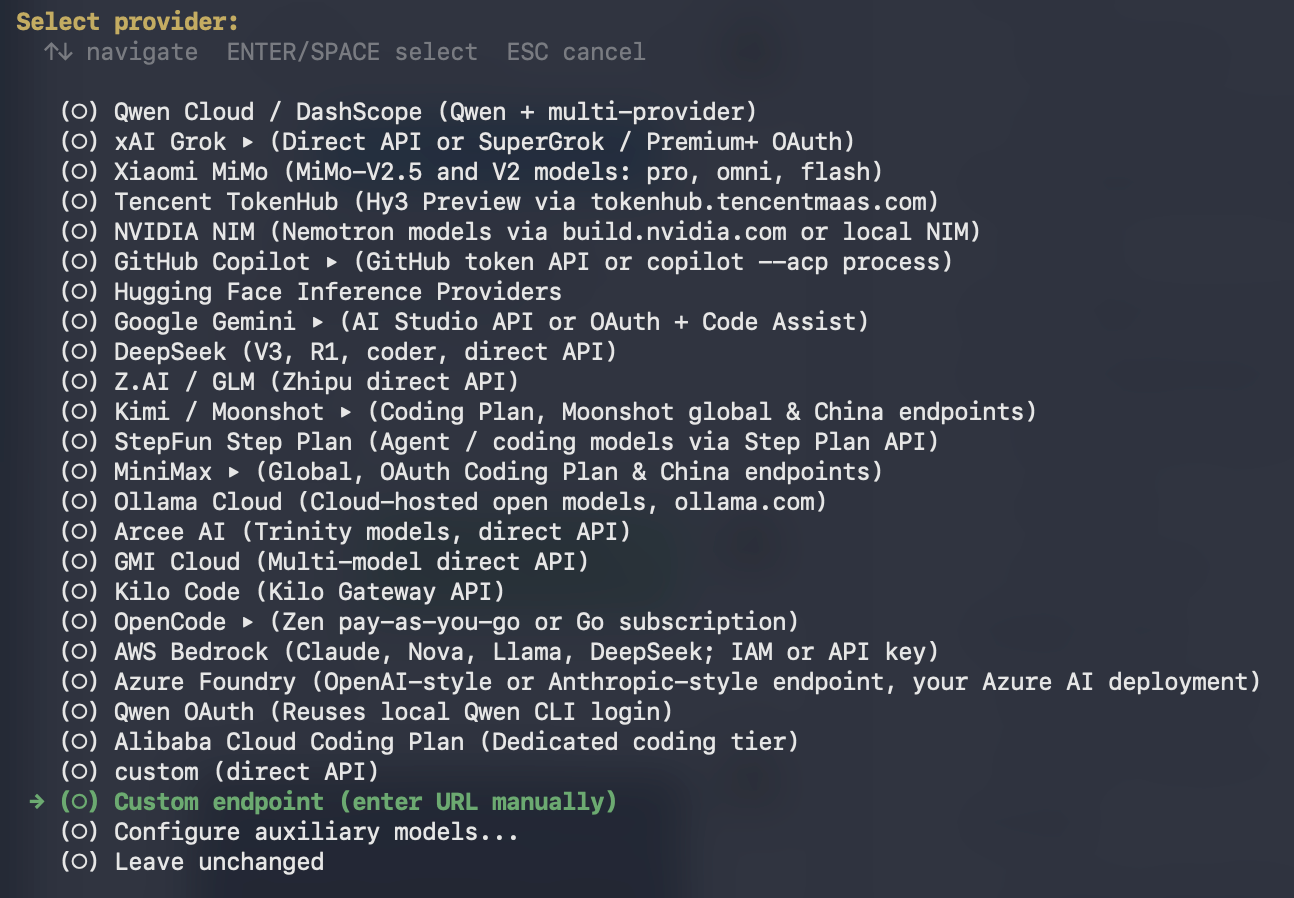
Enter the EvoLink endpoint URL and API Key
The wizard will prompt you for the endpoint details in turn:
- API base URL: enter
https://direct.evolink.ai/v1 - API key: enter your EvoLink API Key (starting with
sk-)
Verified endpoint via https://direct.evolink.ai/v1/models (154 model(s) visible), the endpoint is connected and the key is valid. Then follow the prompts to continue selecting a default model and tools.WSL2 and Android (Termux) environments also use the
install.sh script above to install.Verify the Installation
Run the diagnostic command to check the installation status: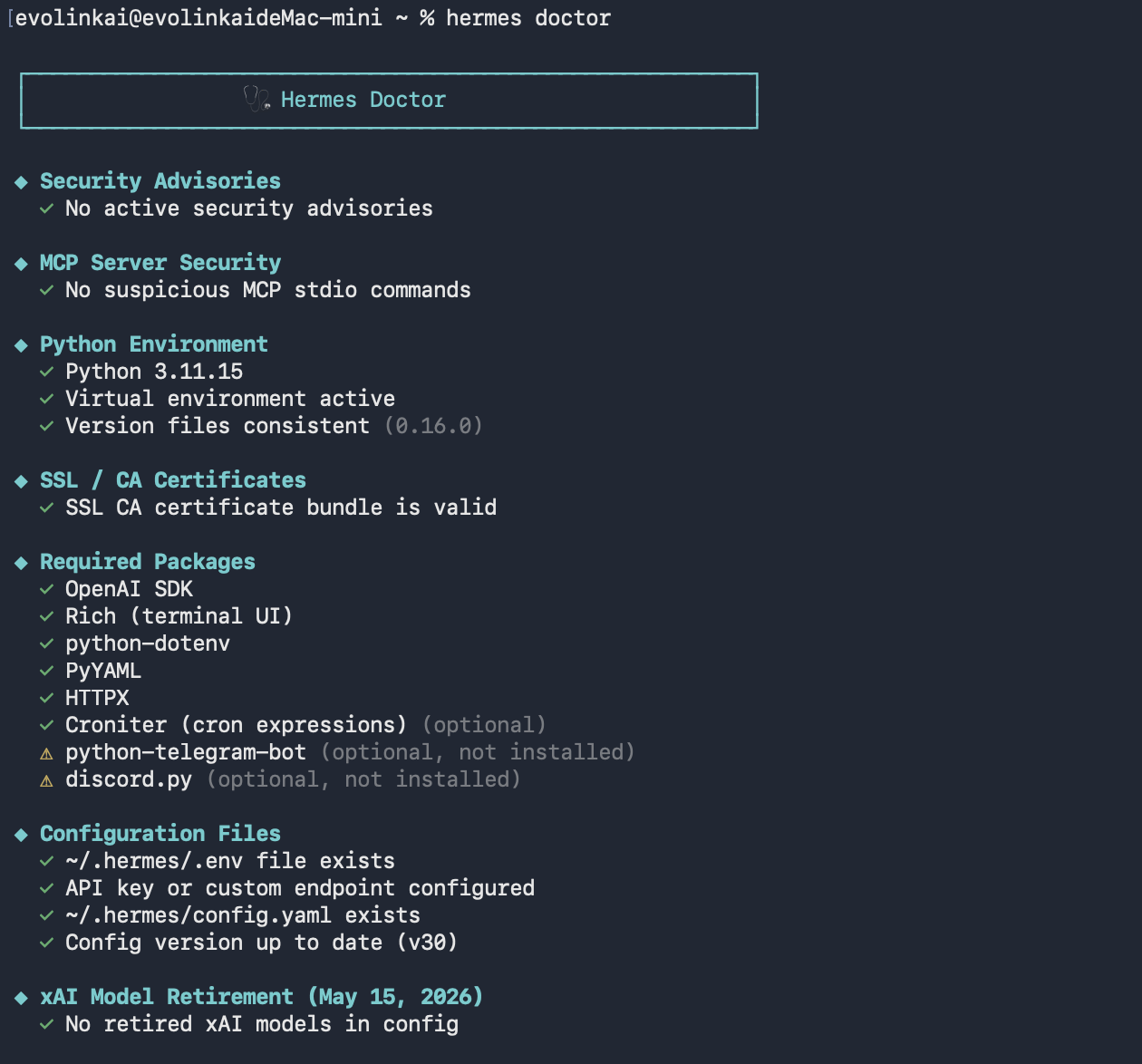
hermes update.
Step 2: Configure the EvoLink API (Quick Users or Reconfiguration)
If you already completed the EvoLink integration via Full setup in Step 1 and passed endpoint validation, you can skip directly to Step 3. This step is mainly for users who chose Quick Setup, or for scenarios where you need to reconfigure / switch models.
~/.hermes/ directory, where:
~/.hermes/.env— stores secrets such as API keys~/.hermes/config.yaml— stores non-secret configuration such as models and providers
custom (custom endpoint) with the endpoint URL pointing to https://direct.evolink.ai/v1.
- Setup Wizard (Recommended)
- Command-line Configuration
- Manually Edit Config Files
Hermes provides an interactive setup wizard, suitable for new users (especially those who chose Quick Setup). Run in your terminal:The wizard automatically writes the API Key to
Select provider: Custom endpoint
In the provider list, scroll down and select custom endpoint (enter URL manually) to connect to EvoLink’s OpenAI-compatible endpoint.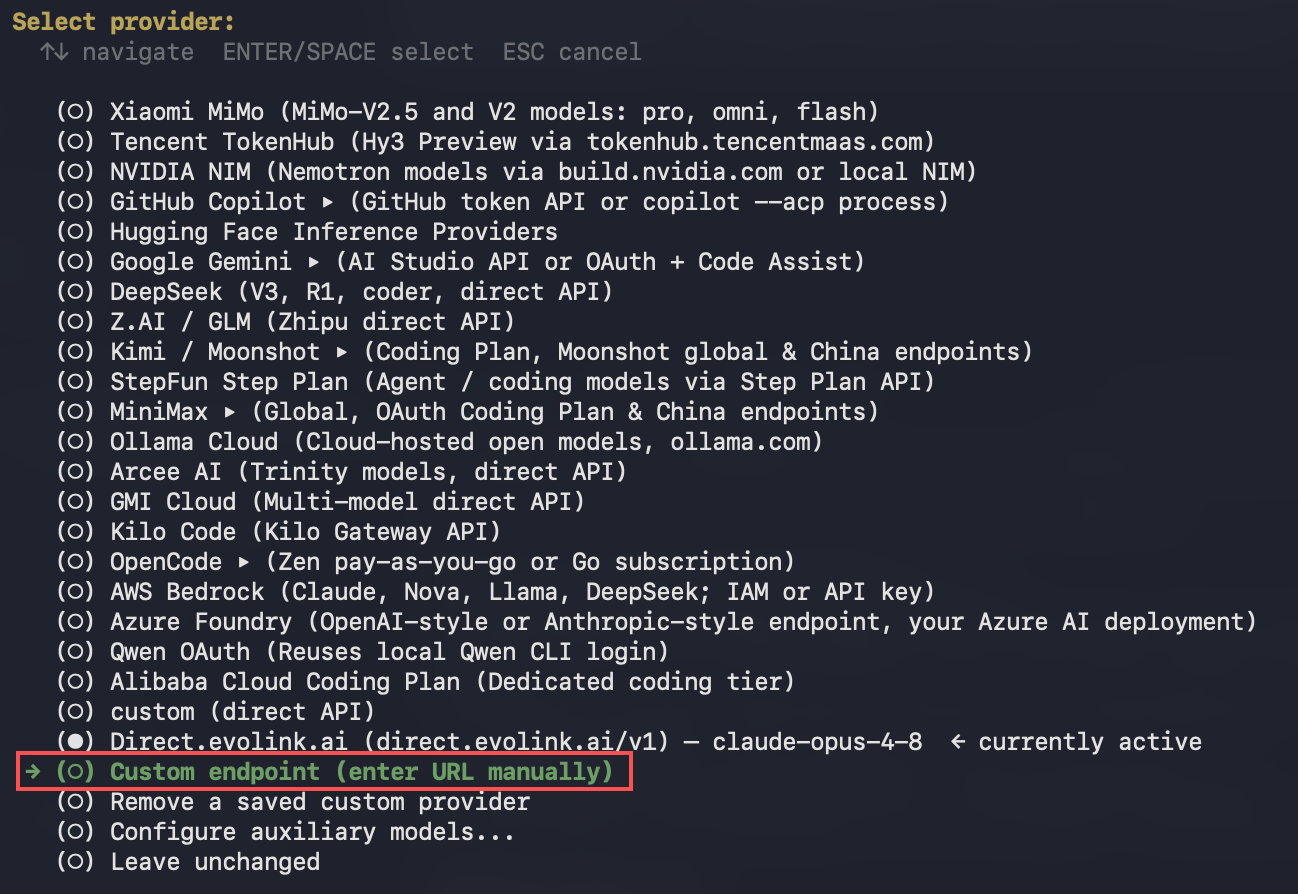
Enter the endpoint URL and key, and select the compatibility mode
Enter the endpoint details in turn, and after validation passes, select the API compatibility mode: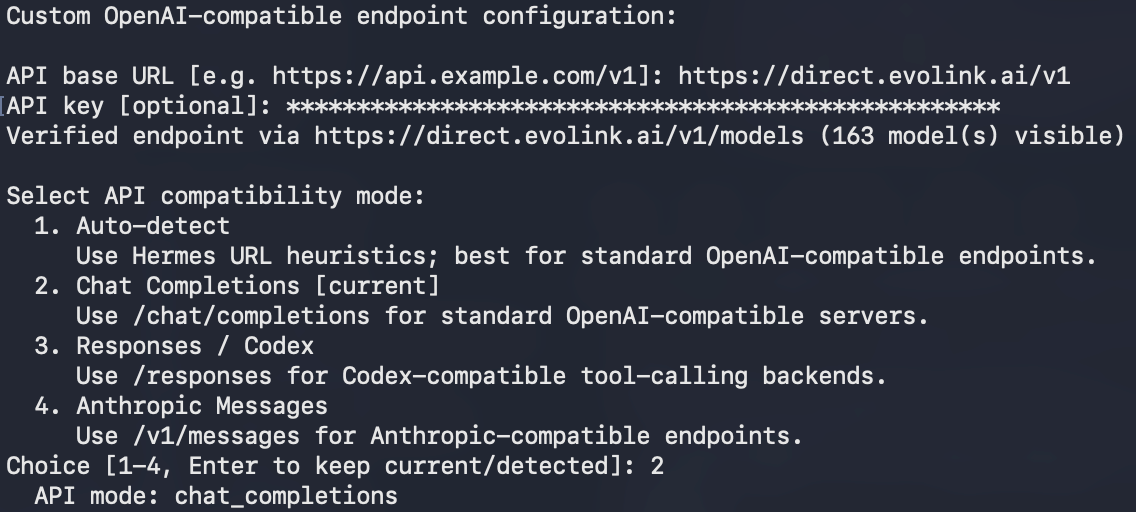
- API base URL: enter
https://direct.evolink.ai/v1 - API key: enter your EvoLink API Key (starting with
sk-) - API compatibility mode: select Chat Completions (standard OpenAI-compatible endpoints)
Verified endpoint via https://direct.evolink.ai/v1/models (163 model(s) visible) means the endpoint is connected and the key is valid.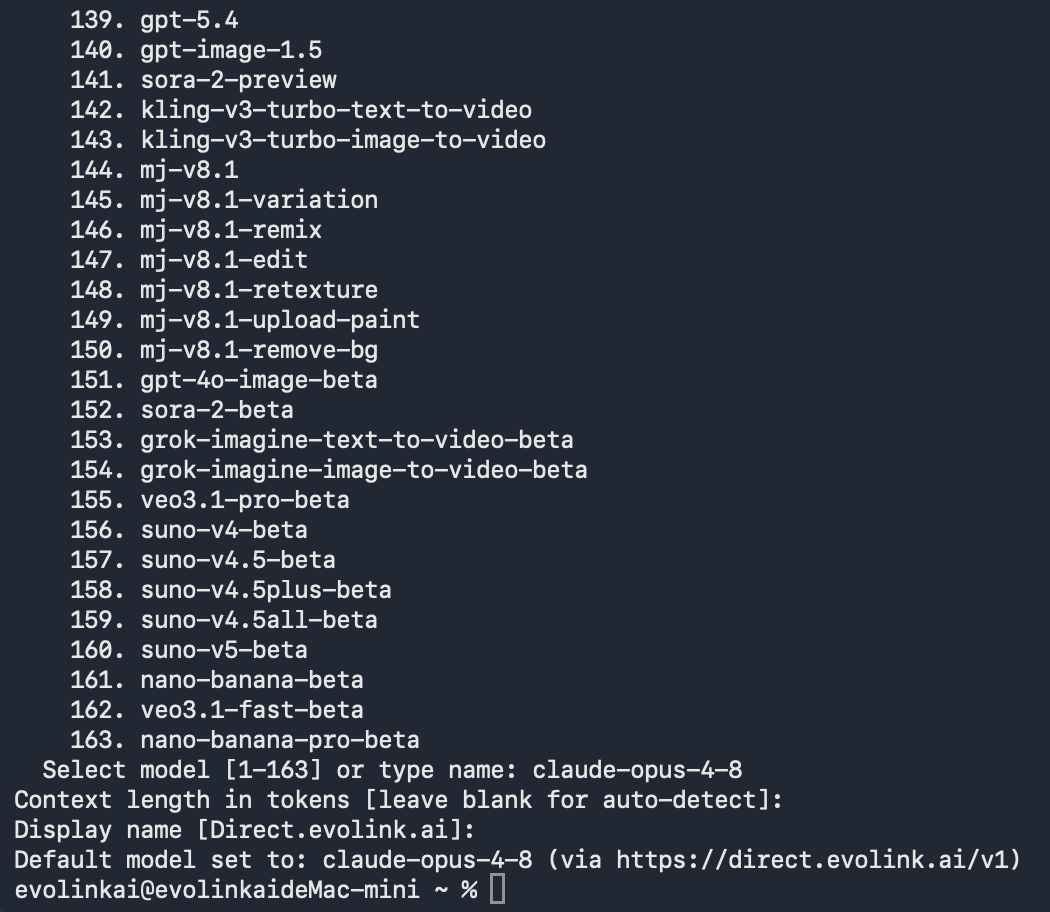
~/.hermes/.env and the model and endpoint configuration to ~/.hermes/config.yaml, with no need to edit files manually.Step 3: Start Using and Verify
1. Launch Hermes Agent
2. Verify the Configuration
After launching, enter a simple prompt to verify, for example: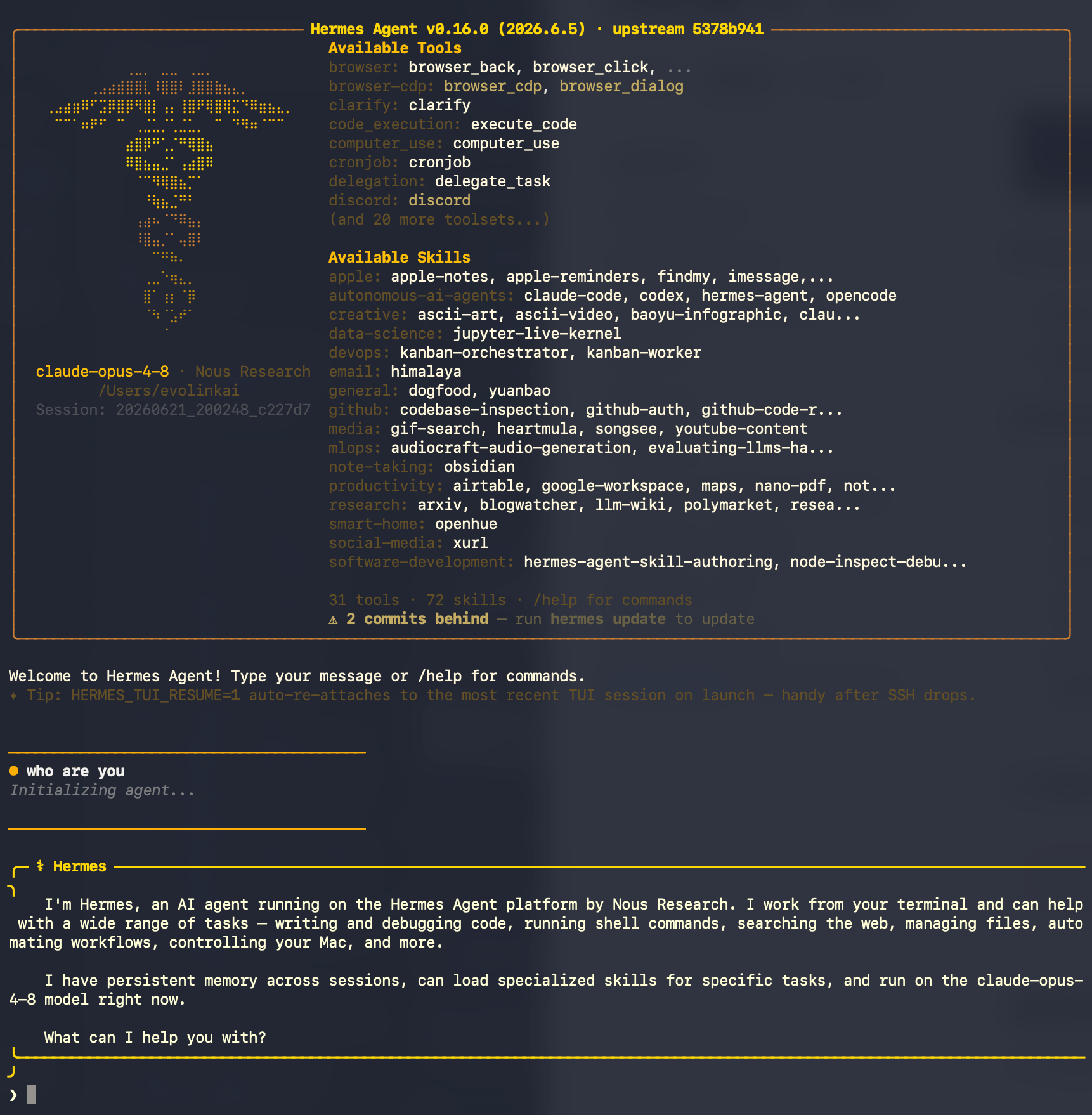
- You see the AI’s reply (a few lines of text)
- There are no errors such as
401,403, invalidAPI key, orcontext length
401 Unauthorized: the API Key is not set or invalid → checkOPENAI_API_KEYin~/.hermes/.env403 Forbidden: the API Key has insufficient permissions or has expired → check the API Keycontext lengthrelated errors: the selected model has less than 64K context → switch to a model that meets the requirementNo API key/ provider not found: no key found → runhermes config set OPENAI_API_KEY ...again
3. Resume a Previous Session
Advanced Configuration (Optional)
The following configurations all edit~/.hermes/config.yaml. Use them as needed.
Fallback Models
When a request to the main model fails, Hermes can automatically switch to a fallback model without losing the current session. You can configure a fallback chain that all routes through EvoLink:Auxiliary Models
Hermes uses “auxiliary models” to handle some secondary tasks (such as context compression, session titles, web summaries, etc.). By default it uses the main model, but you can route these to a cheaper/faster model to save costs:FAQ
1. What is Hermes Agent? What is it mainly used for?
Hermes Agent is an open-source, terminal-native autonomous AI agent from Nous Research. It features persistent memory and self-created skills, and can handle coding assistance, task automation, Q&A conversations, and more from the command line, while supporting integration with various chat platforms through a messaging gateway.2. Are Hermes Agent and the Hermes 3 / Hermes 4 models the same thing?
No. Hermes Agent is an open-source command-line tool; Hermes 3 / Hermes 4 are Nous Research’s large language model families. This guide covers the Hermes Agent tool, which can connect to a variety of model providers including EvoLink.3. Why use provider: custom to connect EvoLink?
Because EvoLink provides a standard OpenAI-compatible endpoint. Hermes supports a variety of providers, and custom (custom OpenAI-compatible endpoint) is exactly the way to connect to this type of compatible interface. So in Hermes, connect EvoLink with provider: custom and set the endpoint URL to https://direct.evolink.ai/v1.
4. What should I do if I get a context length error at startup?
Hermes Agent recommends using a model with at least 64K tokens of context. Because the system prompt and tool definitions consume a significant amount of context, a window that is too small may fill up and leave no room for conversation, causing it to be rejected at startup. Please switch to a model with a larger context (such as EvoLink’s Claude family).5. What usually causes 401 / 403 errors?
- 401 error:
OPENAI_API_KEYis not set or the API Key is invalid - 403 error: the API Key has insufficient permissions or has expired
- Please check the key in
~/.hermes/.env, and whetherbase_urlishttps://direct.evolink.ai/v1
6. Why didn’t my configuration changes take effect?
- Confirm the configuration was written to the correct file: the API Key goes in
~/.hermes/.env, and the model/endpoint goes in~/.hermes/config.yaml - Run
hermes configto see the configuration currently in effect - Check whether the indentation and syntax in
config.yamlare correct (YAML is indentation-sensitive) - Restart Hermes
7. How do I switch models?
- Interactive: run
hermes modelto reselect - Command line: run
hermes config set model model_name - Edit the
model.defaultvalue in~/.hermes/config.yamldirectly
8. Which common models does EvoLink support?
EvoLink supports the following Claude models (it also supports GPT, Gemini, and other families, which you can view in the console):| Model name | Description |
|---|---|
claude-haiku-4-5-20251001 | Fast response |
claude-sonnet-4-5-20250929 | Balanced performance |
claude-opus-4-5-20251101 | Advanced version |
claude-sonnet-4-6 | Latest version |
claude-opus-4-8 | Latest version |
claude-opus-4-7 | Latest version |
9. How do I check usage?
Log in to the EvoLink console to view request volume, consumption, and token usage.10. Where are the configuration file and secret file located?
- Secrets (API Key):
~/.hermes/.env - Model and provider configuration:
~/.hermes/config.yaml - Run
hermes config editto open the configuration file for editing directly.
11. How to open a command-line terminal?
- Windows
- macOS
- Linux
- Method 1: Press
Win + R, typepowershell, and press Enter - Method 2: Search for “PowerShell” in the Start menu
- Method 3: Hold Shift in a folder, right-click an empty area, and select “Open PowerShell window here”